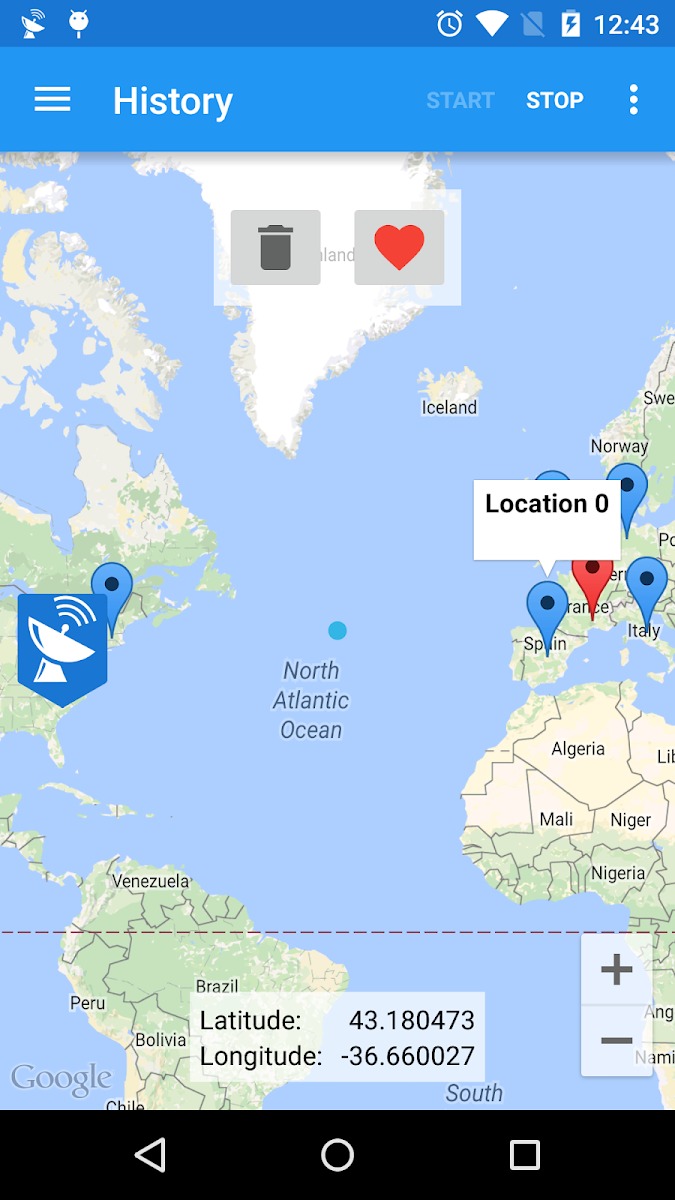
Fake GPS is an Android mock location utility for testing how an app responds to coordinates from a different place. If you are checking a map screen or a location-dependent result, you can pick a point and start a simulation from the map. History gives you a way to revisit a place when you need to repeat the same check.
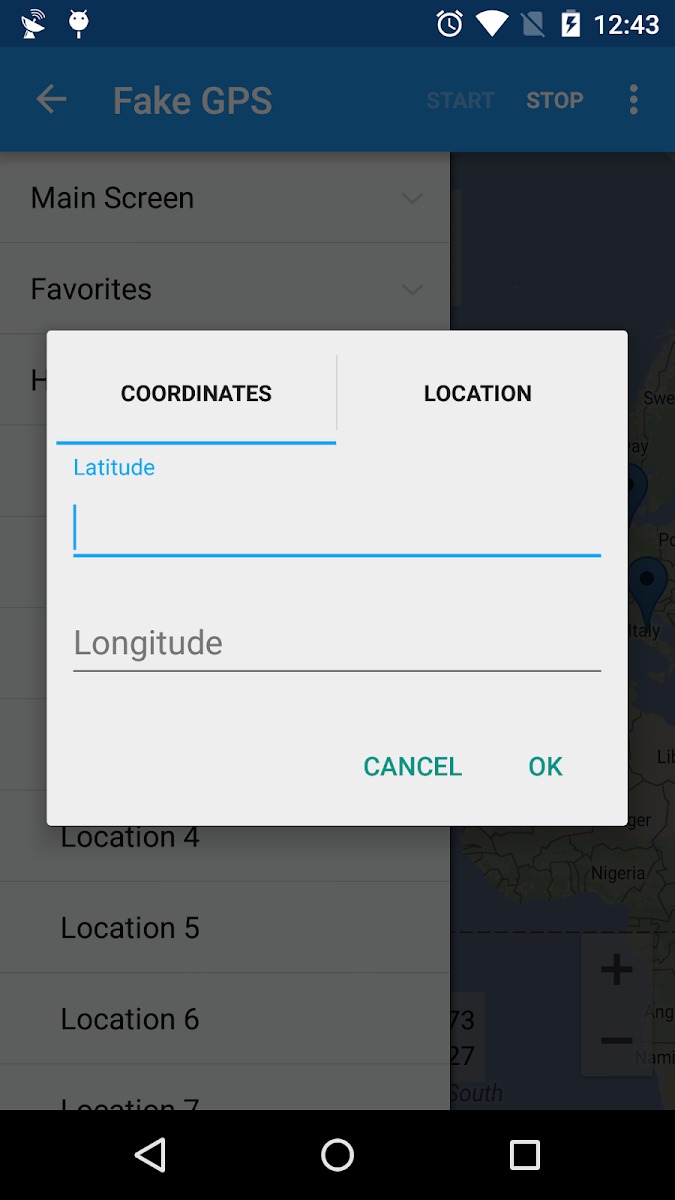
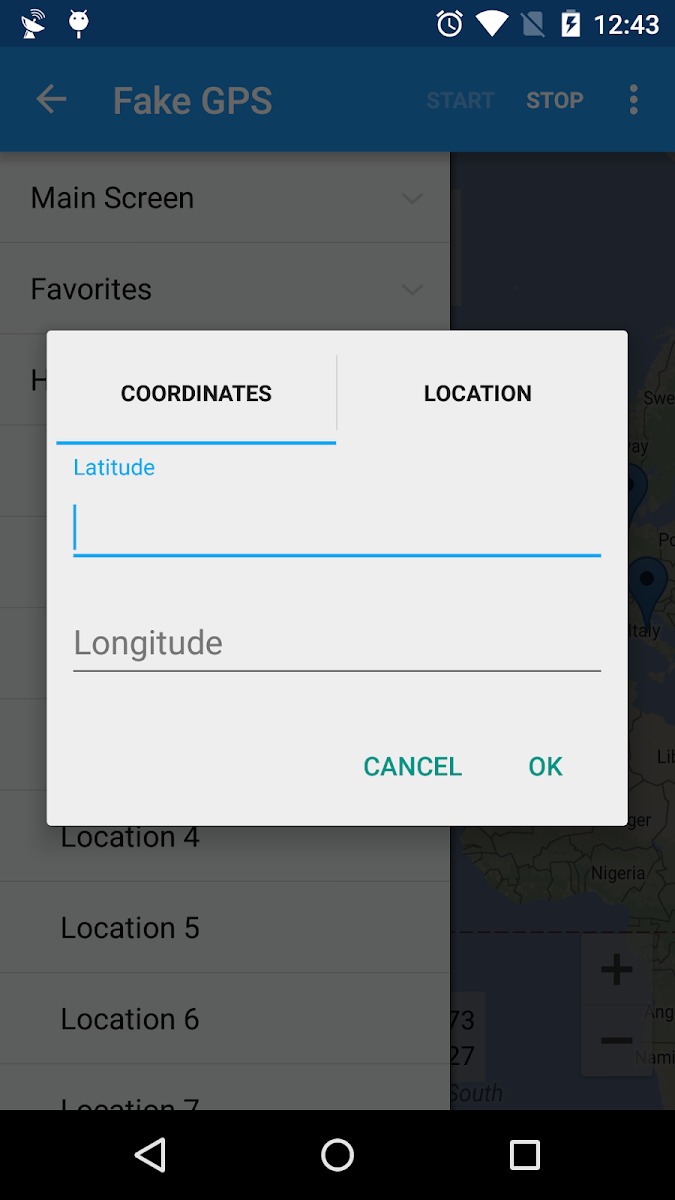
Before starting a session, open Android’s Developer options and choose Fake GPS under the mock location setting. Older devices may use an allow switch instead. Return to Fake GPS and select your starting point. If the test case specifies a latitude and longitude, the Coordinates dialog lets you enter both values without having to position the map by eye.
Start the simulation before opening the app you are checking. For a map test, compare its location marker with the point you selected. For a nearby-results test, check whether the results list responds to that point. These are separate checks because an app may draw the expected marker while using another source for its results.
History: Use the map history when you need to go back to a point you tried earlier. If a behavior appears at one point but disappears at another, write down both coordinates alongside your observations so you can reproduce the comparison after a code change.
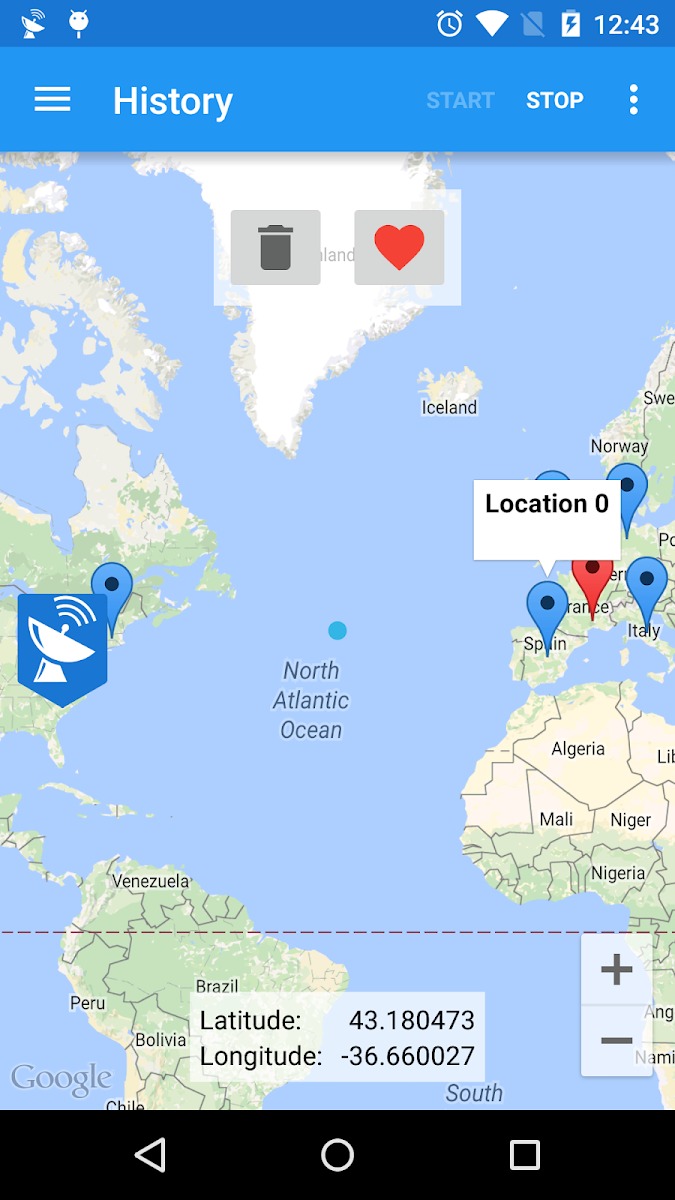
Favorites: Keep a small set of fixtures for checks you run regularly. For example, save one point on each side of a service boundary so you can repeat the same comparison after changing the rule that decides whether an address is in range.
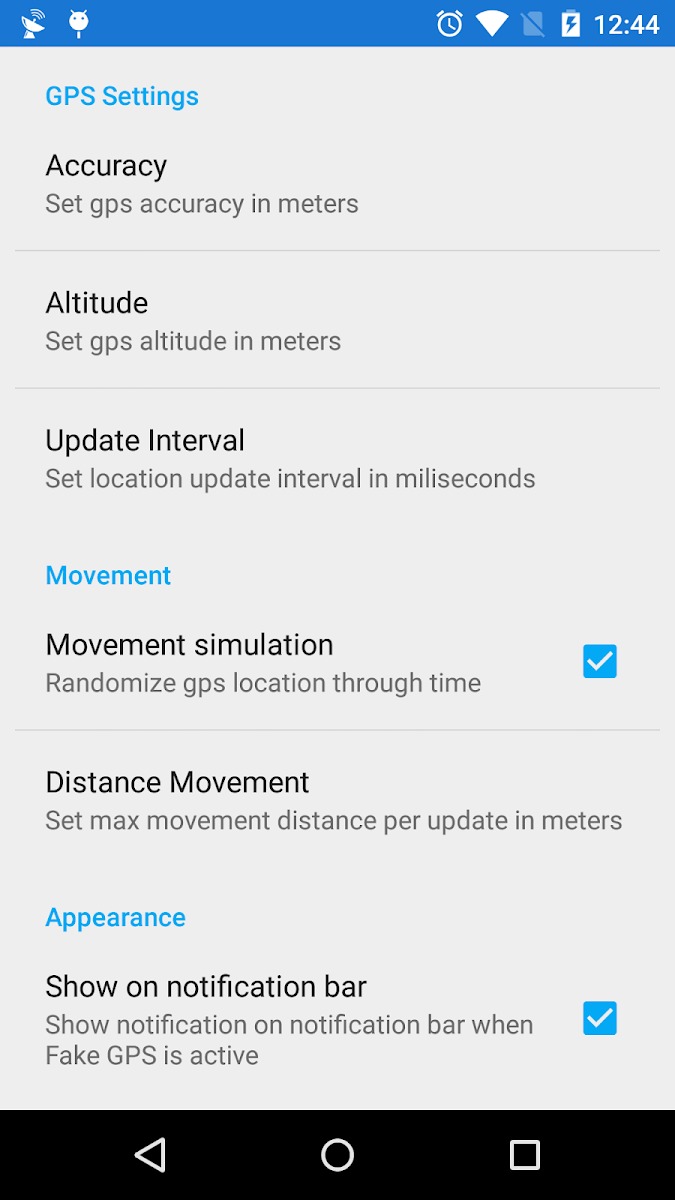
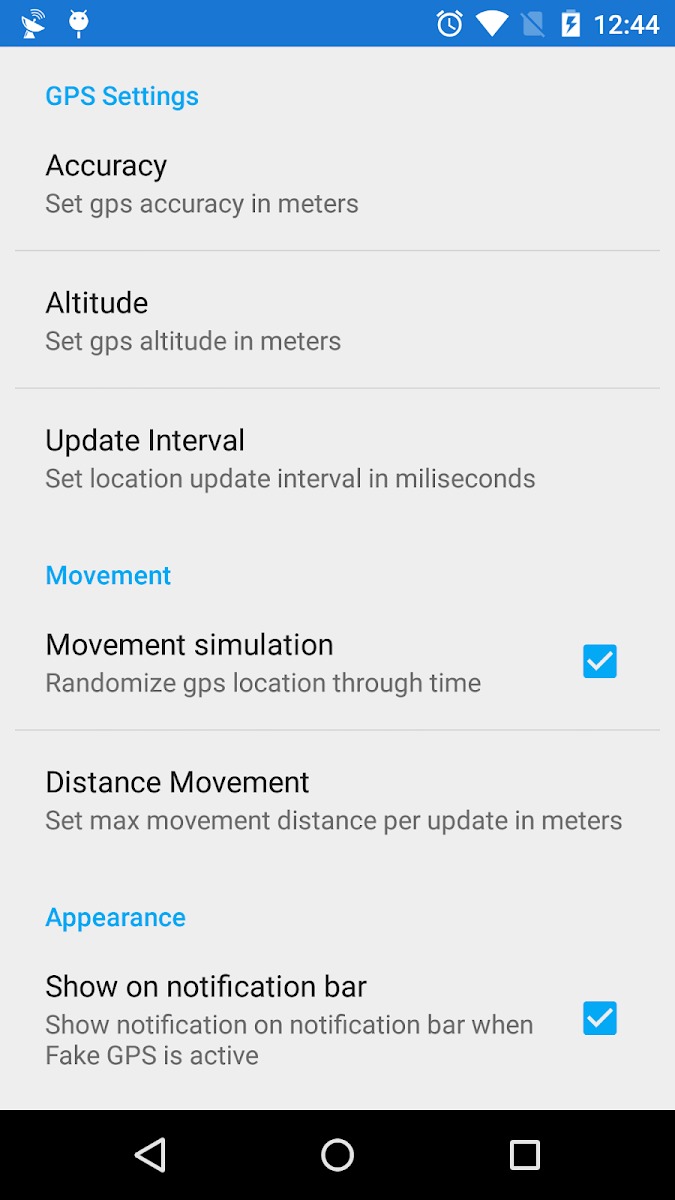
The release notes for 5.8.10 describe a reworked simulation engine and Settings screen. The published settings image illustrates separate controls for accuracy, altitude and update interval. When investigating a result, adjust one control at a time and record it with the test point. An altitude change and a shorter interval answer different questions about how the receiving app handles location updates.
Why does the previous point still appear after stopping the simulation?
A receiving app can display its last known location while waiting for a fresh fix. After stopping, check whether the map or result has refreshed before treating the old point as the current one. The developer’s help covers cached mock locations.
Can I set a point from a development script?
ByteRevApps documents Android Debug Bridge service actions for starting, updating and stopping a simulation. Check that the device permits mock locations before using these actions with a test script.
Use the coordinate dialog and saved points when a location bug needs a repeatable test case. The result is most informative when the app you are checking reads Android location updates and you can observe when its display refreshes.
Fake GPS
Tools
Date:2026-11-28

Clone App
Tools
Date:2026-11-28

Anime World
Media & Video
Date:2026-11-28

BandLab
Media & Video
Date:2026-11-28

ChatGPT
Productivity
Date:2026-11-28

MX Player Pro
Media & Video
Date:2026-11-28

Zoom Workplace
Social
Date:2026-11-28

MX Player
Media & Video
Date:2026-11-28