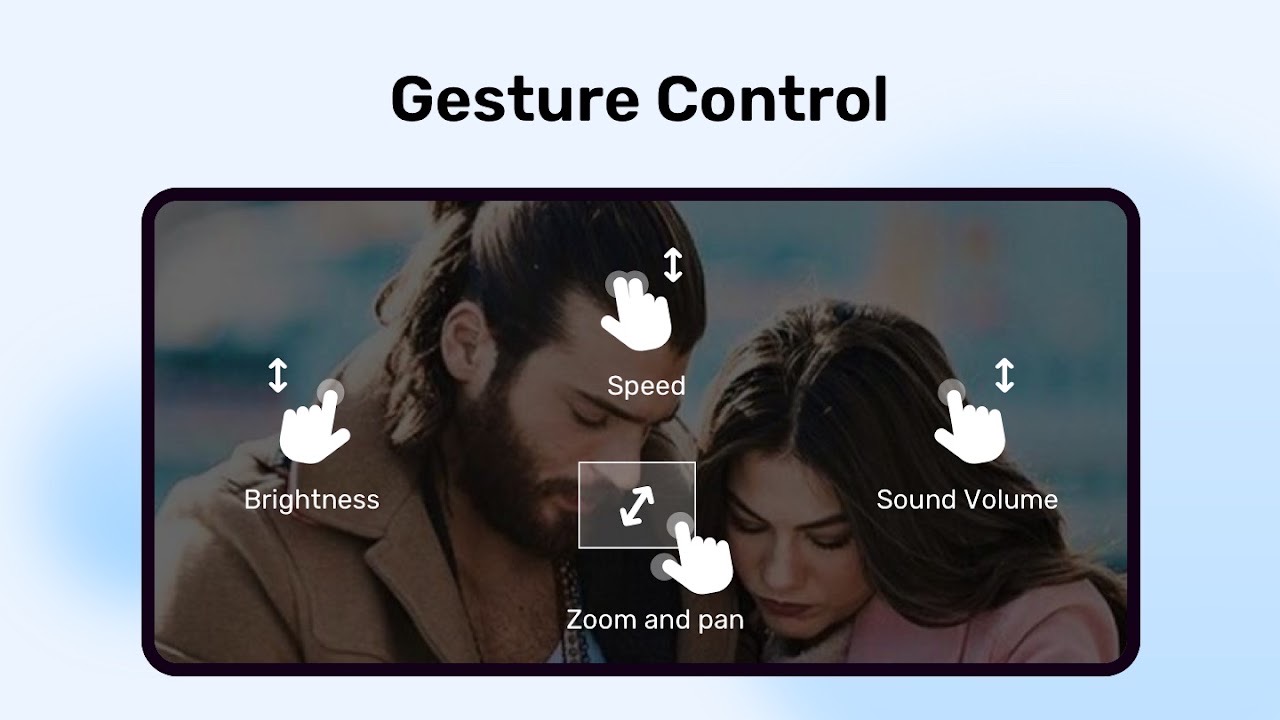
MX Player is an Android media player for videos and music stored on your phone. You can open a recording from its folder, select a subtitle track and adjust the picture while the video plays. If a file struggles to play, the HW and HW+ decoder options give you another way to try the same recording.
Open the local library when you want to play a recording or a film that is already on the phone. Folders provide a starting point when you remember where you saved a file. Keep a film and its separate subtitles together so the two are easy to find again when you move the film to another folder.
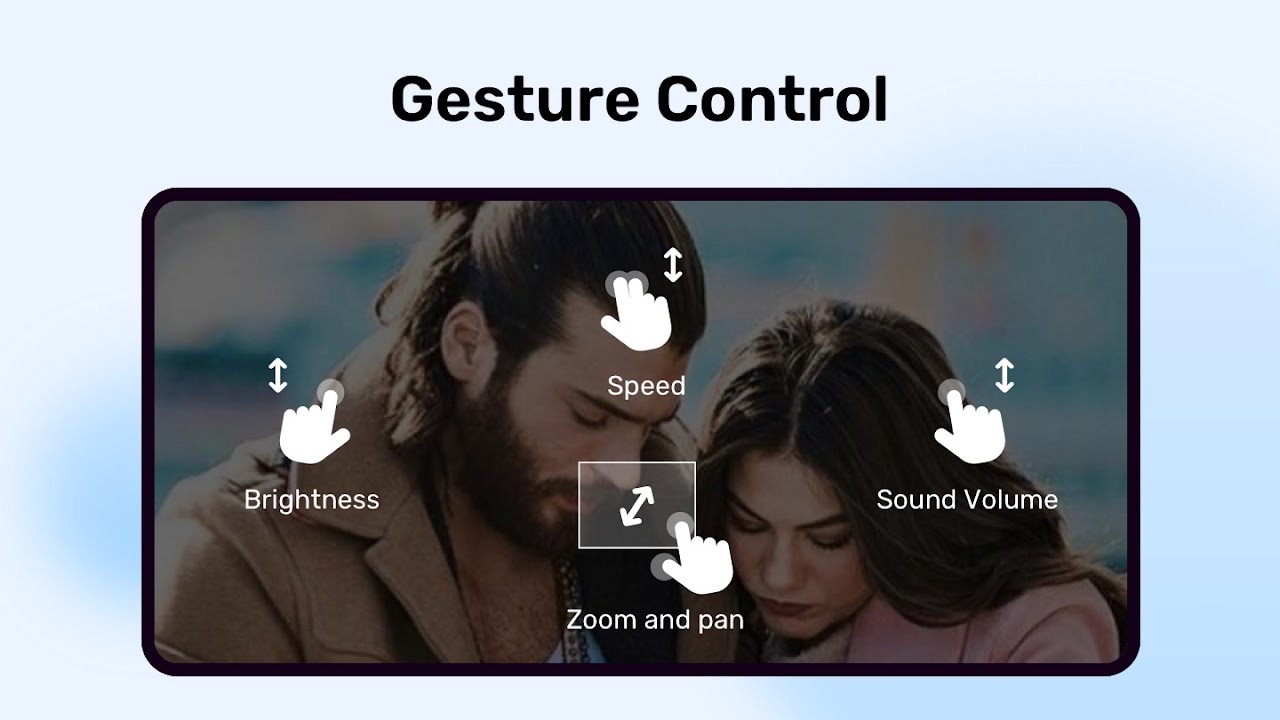
During playback, gestures let you make adjustments without leaving the picture. A swipe on the brightness side helps if you are watching a dark scene in a bright room. Use the volume side to adjust the soundtrack. If you zoom in to inspect a detail, use the fit view again before following captions near the edge of the frame.
HW for a first attempt: The standard hardware decoder uses the phone’s own media framework. It is a good starting point for an ordinary recording that already opens smoothly. If one file fails, test a second file before assuming the entire player is broken. A problem with one recording can be specific to the format and device.
HW+ for a troublesome file: This option uses MX Player’s media framework with hardware decoding. Where the device supports it, try it on a video that the standard path struggles to open. The outcome can differ between phones even when the file itself is identical.
SW as a playback fallback: Software decoding puts the work on the CPU. It is worth trying when neither hardware option handles a particular recording. For a high-resolution video, watch a short section first to see whether the picture and sound keep up on your device.
Open a track by hand: Start the video and use the closed-caption control. The player can list a subtitle file it recognizes in the same folder. If the expected track is missing, use Open and browse to the subtitle file you want. This is useful when you have differently named versions for several languages.
Check the timing: Play a scene with a clear line of dialogue after attaching a subtitle. If the words are consistently early or late, confirm that the subtitle was made for the same cut of the film. A track with the right language can still be a poor match for a different edit.
Why is HW+ absent on my phone?
MX’s help documentation says the setting can be unavailable on unsupported devices. If you cannot see it in the decoder settings, try the available modes on the recording you want to play.
Why are there several names in the subtitle list?
The file can contain more than one subtitle track, and you can open a separate track as well. Pick the one you need and check a short exchange before you continue watching.
Can I lock the screen controls while watching?
MX documents a playback lock controlled through the player settings. Choose a lock mode first and use the lock icon during playback to reduce interruptions from accidental touches.
Does 3.1.4 unlock MX Player Pro?
The package belongs to the standard MX Player line. Pro has its own listing. Use the version number to identify this release, and check which edition you have if you are comparing features or purchase options.
MX Player 3.1.4 is most useful when your viewing starts with a file you already have. You can keep a separate subtitle track alongside the video and try a different decode path when a recording behaves poorly. Hardware support varies by phone, so test with the file you care about before relying on a particular decoder.
MX Player
Media & Video
Date:2026-11-28

ZEE5
Media & Video
Date:2026-11-28

Samsung Magician
Tools
Date:2026-11-27

1DM+
Tools
Date:2026-11-27

BiP
Social
Date:2026-11-27

Picsart
Photography
Date:2026-11-27

APKCombo Installer
Tools
Date:2026-11-27

F1 TV
Media & Video
Date:2026-11-27