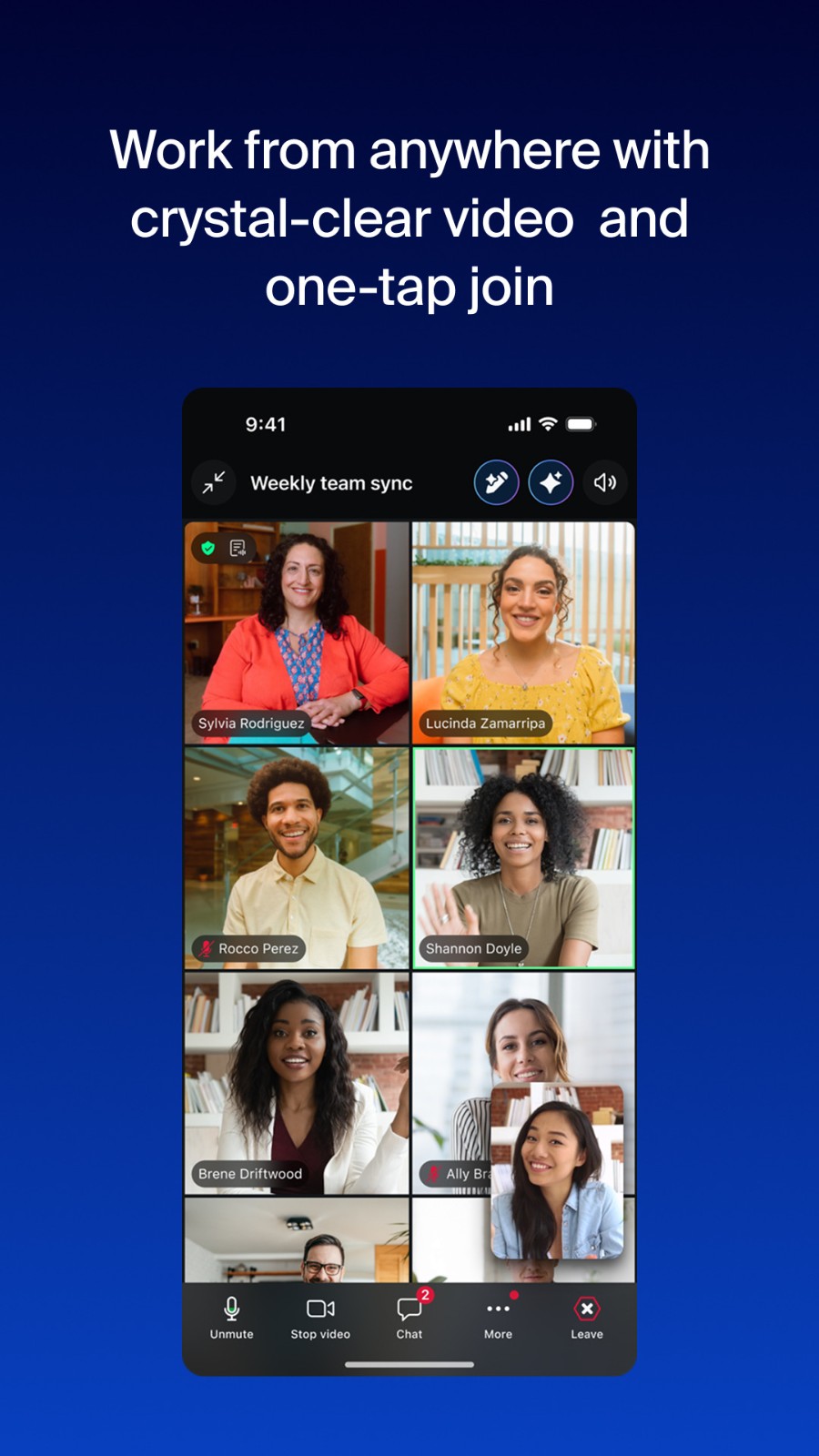
Zoom Workplace is a video meeting app that puts the invitation, microphone, camera and shared screen on your Android phone. When someone sends you a meeting link, you can prepare your audio and video before the conversation starts. A host may put you in a Waiting Room first, or give you a turn to show a document from your phone once you’re inside.
An invite link gives you a route into the call from an email or calendar event. If you have the numeric meeting ID instead, open Join in the app, enter that ID and supply the passcode when asked. Use a name the organizer will recognize, particularly when several people are joining as guests from outside the same organization. An old calendar invitation can point to the wrong room, so check the occurrence and ask the organizer for the current details if Zoom reports an invalid ID.
The Waiting Room is a separate stage from the meeting itself. Some meetings place you there until the host admits you, so plan for a short wait if you’re joining an appointment from outside the organizer’s team. If the meeting starts and you’re still waiting, check the scheduled time and ask the organizer whether they can see the name you entered.
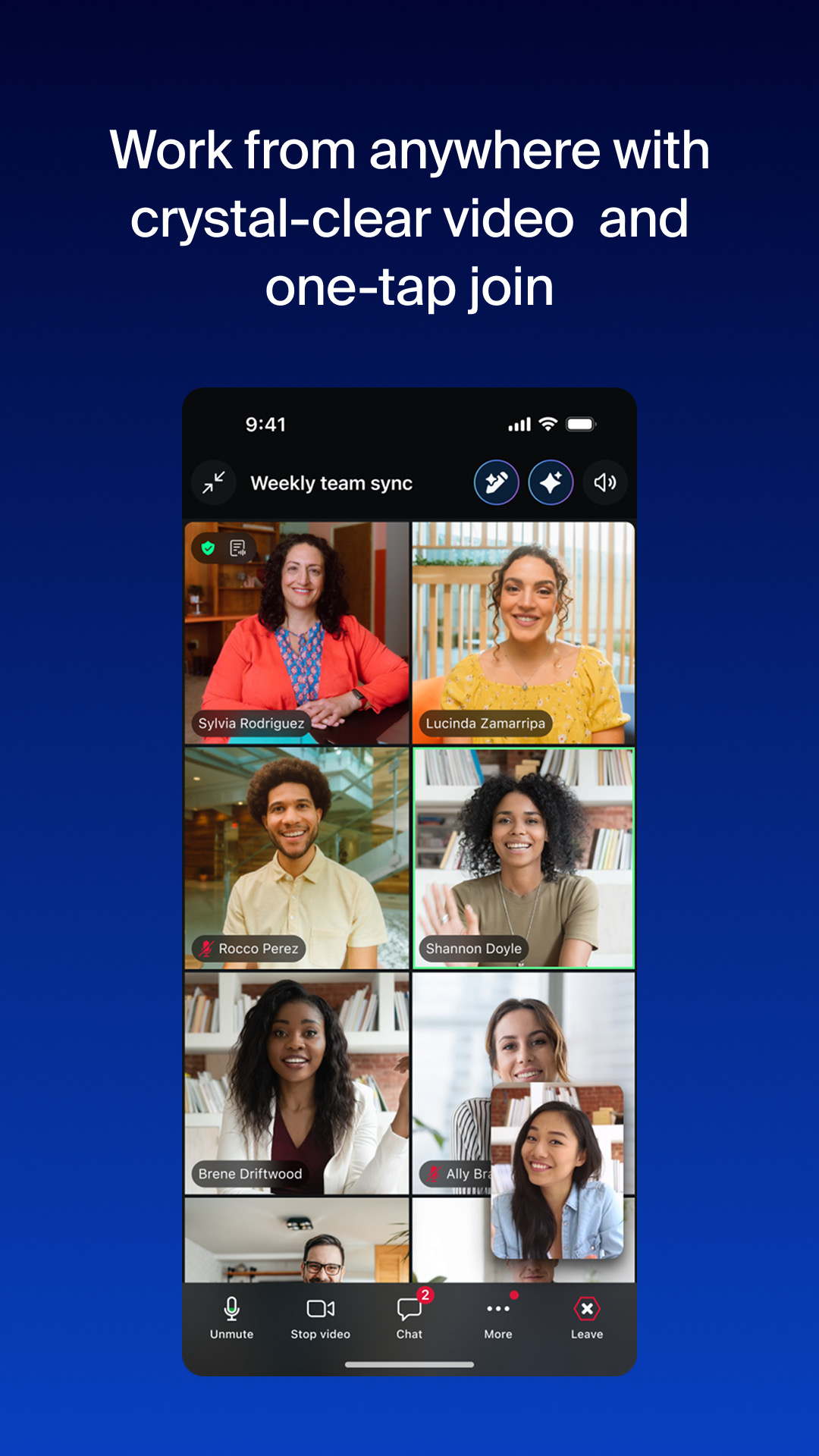
Connect meeting audio: When the meeting opens without sound, look for Join Audio and choose the internet audio option if it’s available. A connected microphone with mute turned on is a different situation from a phone that hasn’t joined the meeting audio. Check which state you’re in before adjusting speaker volume or switching headsets.
Give Android access: The app needs microphone permission to send your voice and camera permission when you turn on video. If you previously denied access, open the app’s permissions from Android settings before returning to the call. You can keep your camera off and still follow the speaker’s audio and shared material.
Use the invitation’s dial-in number: If the host’s invitation includes a phone number, you may be able to use a telephone call for audio while keeping the app open for the presentation. Follow the dial-in prompts and use the participant ID if the meeting supplies one. Availability depends on the host’s setup and the numbers included with the invitation.
Show what’s on your phone: Open Share in the meeting controls, select Screen and respond to Android’s screen capture prompt. Switch to the app you want the group to see. Open the document or settings screen before you start, and silence sensitive notifications if they could appear over the material you’re presenting. Use Stop Share when you finish the demonstration.
Point out a specific area: When annotation is available during an Android screen share, the pencil control opens drawing tools for pointing at an item or underlining an example. The host can restrict annotation, and the available tools can differ between a phone and a tablet. A short mark is particularly helpful when the audience is following a sequence of taps on a dense screen.
Can a guest attend without signing in?
Yes, if the organizer allows guests. A meeting with an authentication requirement may ask you to sign in with an eligible account even when you have the correct passcode.
Can the mobile browser share a screen?
Zoom’s mobile web client currently lacks screen capture. Use the Android app if you need to show your screen, subject to the meeting’s sharing permissions.
Does this APK include a paid Zoom plan?
The 7.2.5.45052 package matches the Android release listed by Zoom. Paid features depend on the signed-in account’s license and administrator settings.
Which Android release does this package require?
The manifest for this package sets Android 9 as the minimum. Organizations may also set a minimum Zoom client release for access to their meetings.
Zoom Workplace suits mobile demonstrations such as showing a colleague the exact Android settings screen they need to open. For a longer walkthrough, prepare the sequence of taps so that you can stay on the material while people follow along. For a one-off meeting where you’ll only listen, the host’s browser option can be enough. If you expect to present from the phone, check sharing permissions with the organizer before the call.
Zoom Workplace
Social
Date:2026-11-28

MX Player
Media & Video
Date:2026-11-28

ZEE5
Media & Video
Date:2026-11-28

Samsung Magician
Tools
Date:2026-11-27
1DM+
Tools
Date:2026-11-27

BiP
Social
Date:2026-11-27

Picsart
Photography
Date:2026-11-27

APKCombo Installer
Tools
Date:2026-11-27