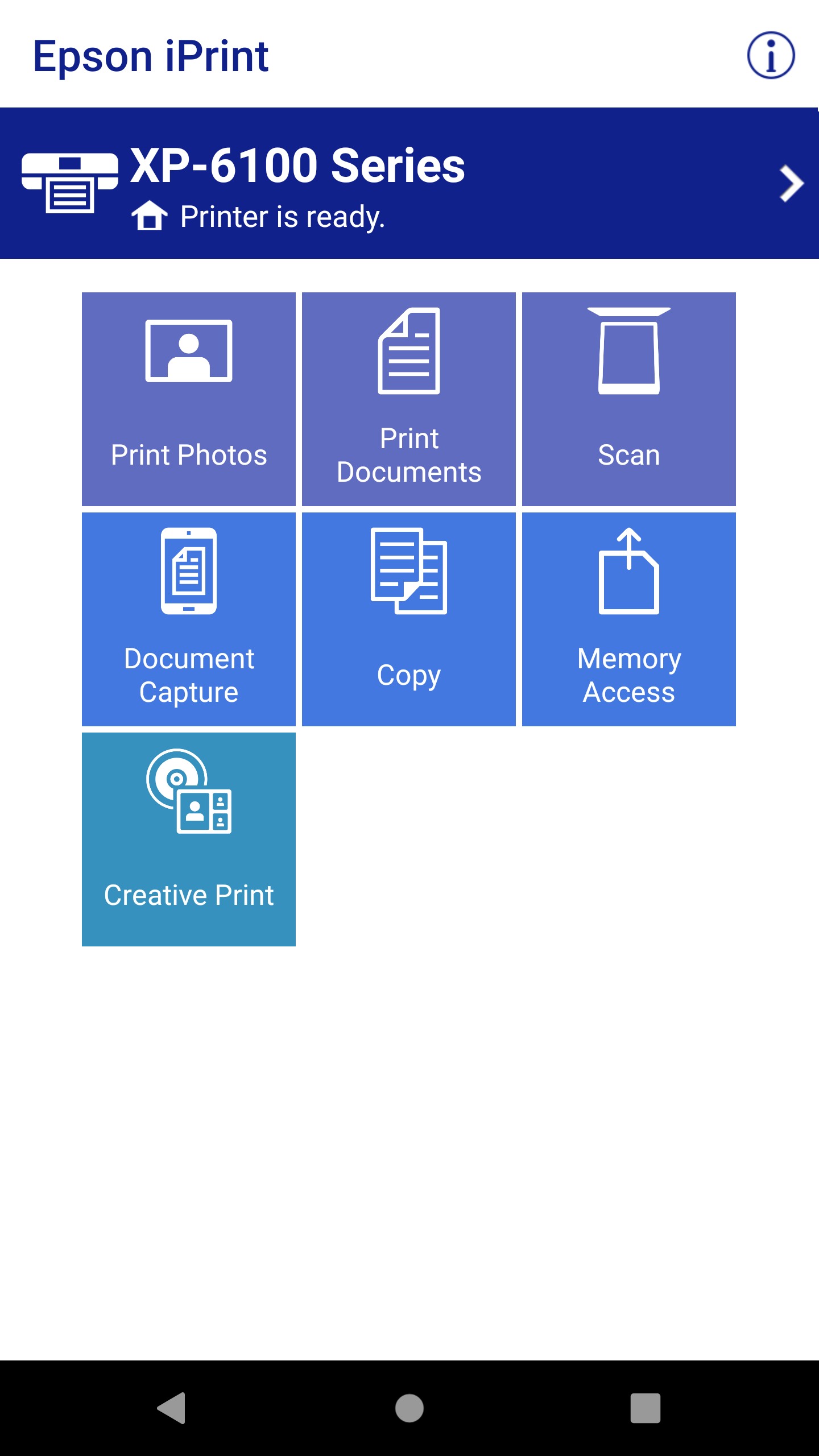
Epson iPrint is an Android utility that sends photos and documents to compatible Epson printers and retrieves scans from supported all-in-ones. You start by selecting a printer, then open a photo or document to set up a print job. If you have an Epson all-in-one, you can also scan a paper original and save the resulting file on your phone.
Epson America’s overview shows an earlier iPrint interface.
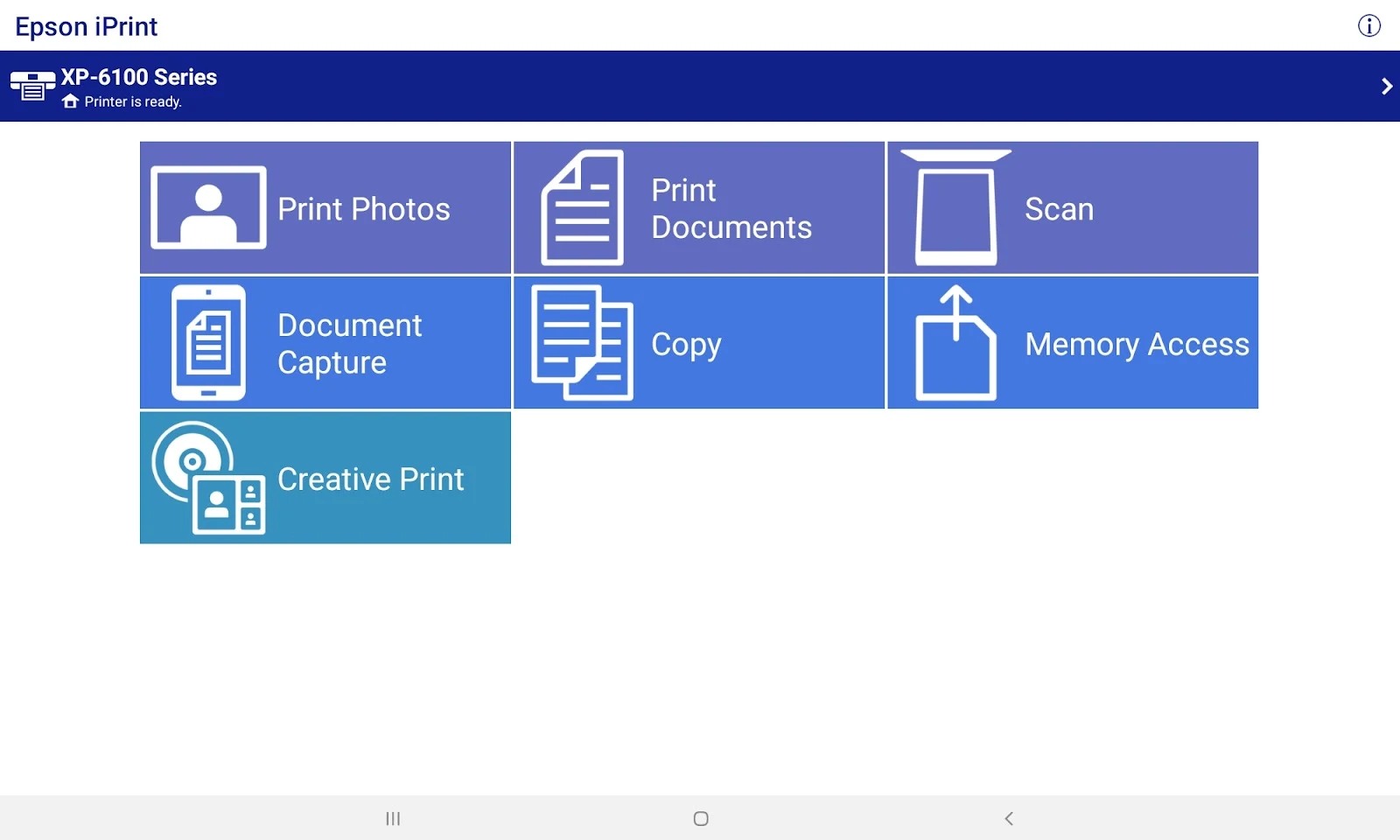
Find the printer: Put the Android device and the printer on the same wireless network for local discovery. Tap the printer area at the top of Epson iPrint and choose your model from the Local tab.
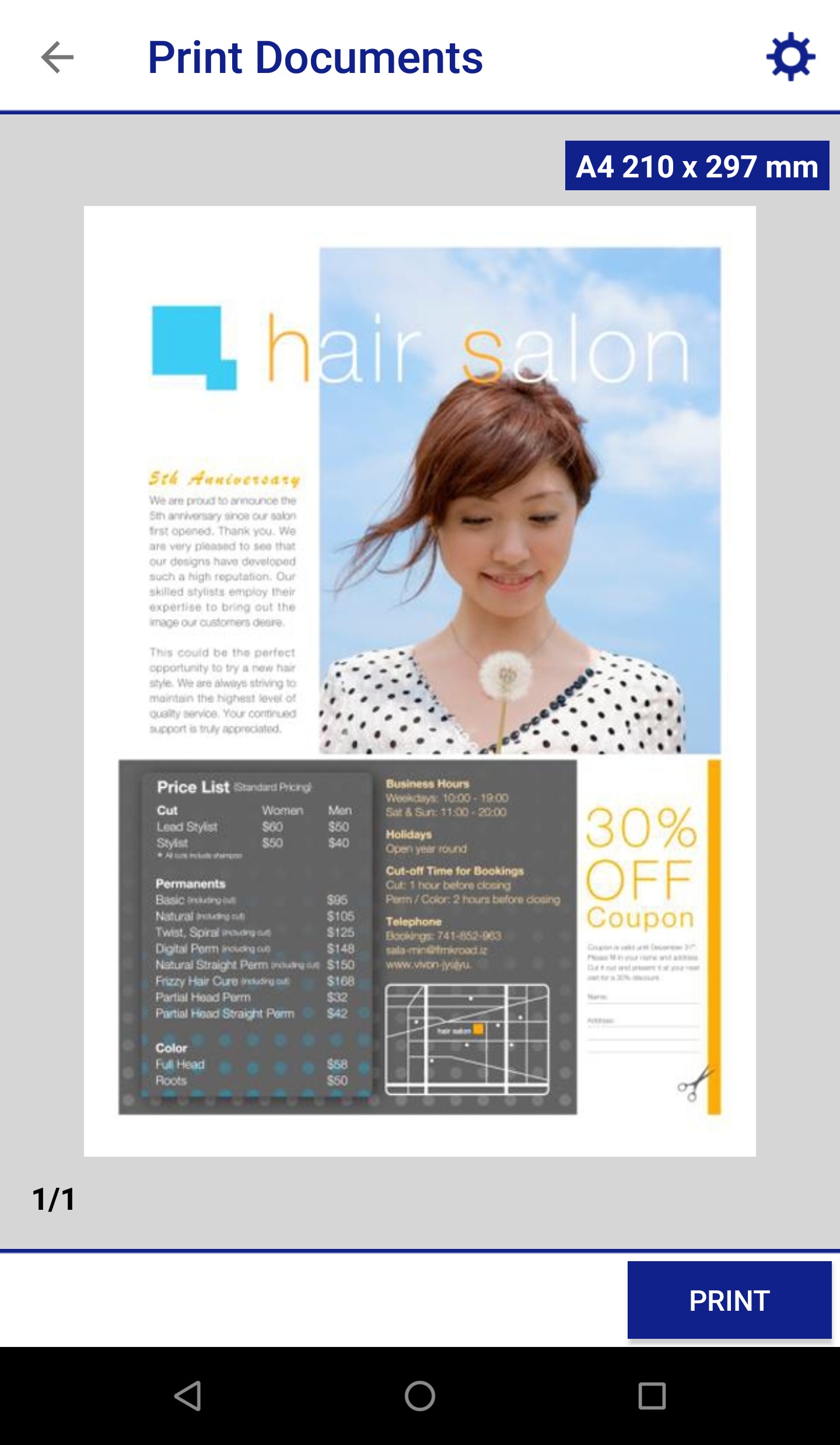
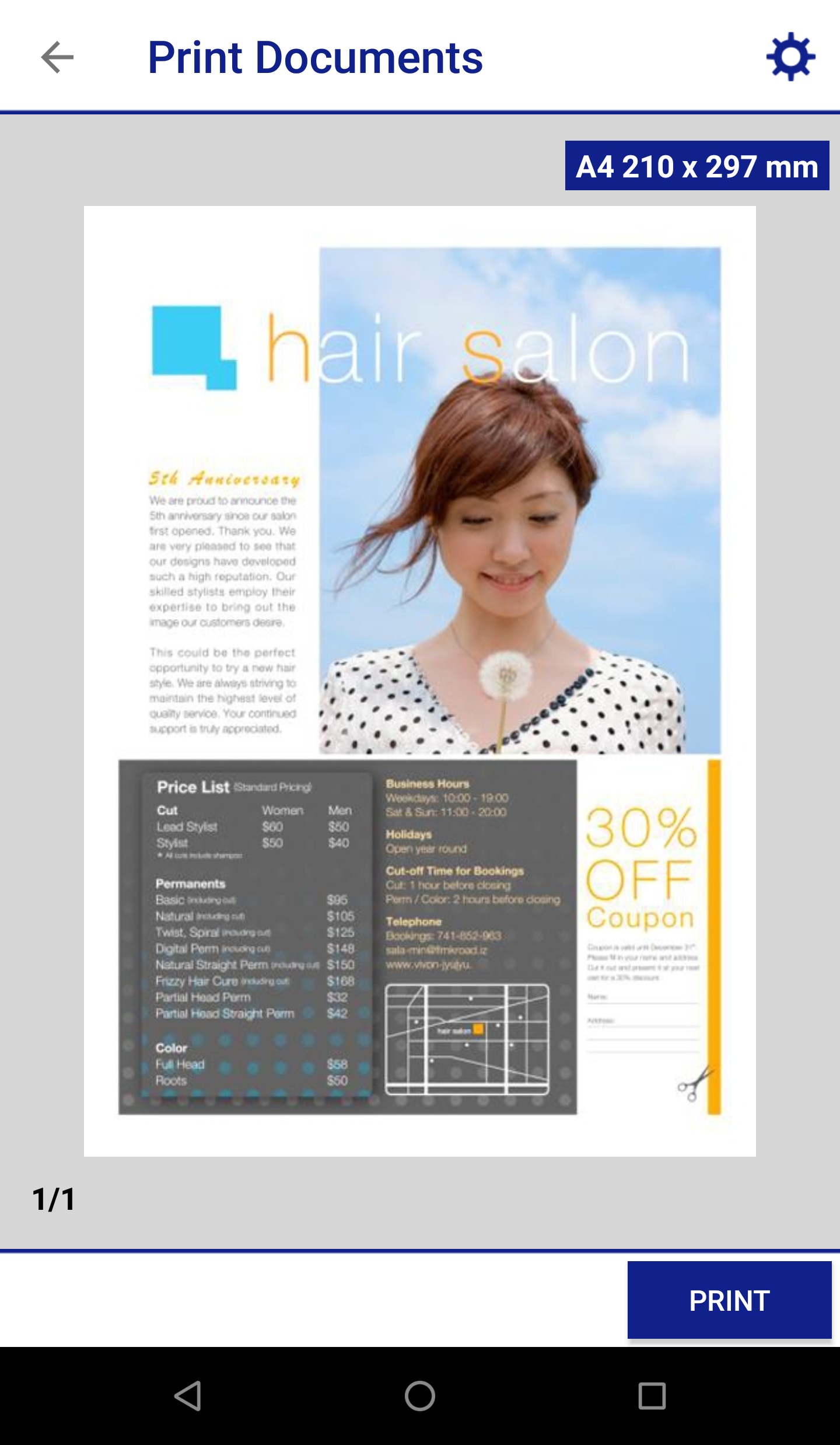
Preview a print job: Open Print Documents or Print Photos from the home screen. The preview shows your selection and the current paper size. Open the settings gear to choose the paper and adjust the job before tapping Print.
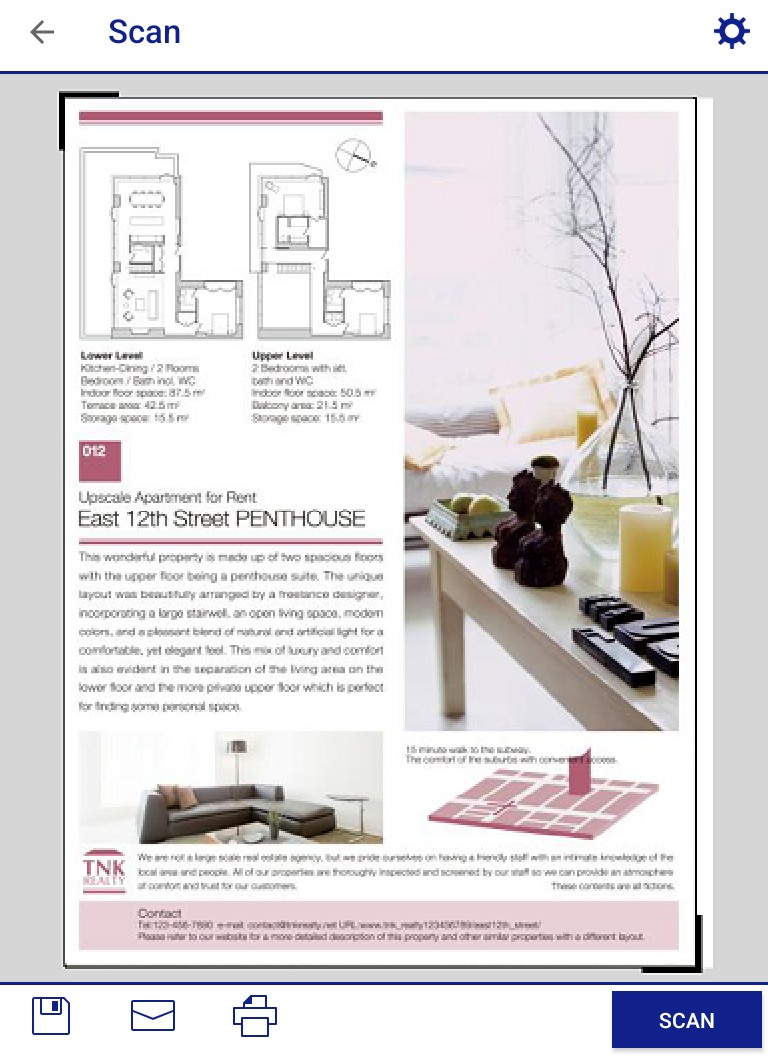
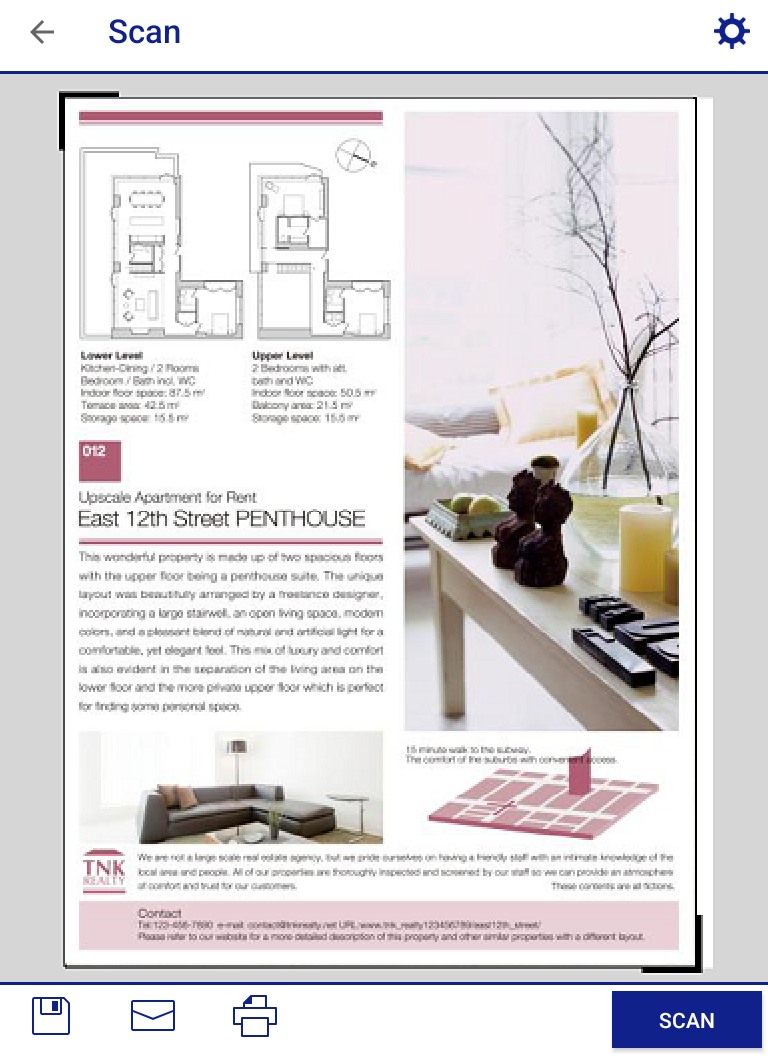
Scan a paper original: Choose Scan when a compatible all-in-one is selected. Epson iPrint lets you choose a resolution and image type, then save the scan to your device or share it by email.
Documents and attachments: Epson iPrint handles saved PDFs and can open email attachments for printing. Word, Excel and PowerPoint files use Google Drive to prepare a printable PDF.
Photo batches: Select more than one picture to print a set. The app can also correct backlighting and unwanted color casts in photos.
Page controls: Use the print settings to set a page range or a copy count. Epson lists borderless printing and duplex as options, so check what the selected printer offers for the job.
Printer status: The printer panel shows its status, and the app can show ink levels. Check the printer before sending another copy of a job.
Camera capture: Document Capture starts with the Android device’s camera. You can format and enhance the captured page before saving it for printing.
Remote Print: For an Epson printer registered with Epson Connect, the Remote tab can use the printer’s assigned email address to add it as a destination. The printer must support Email Print and have Remote Print enabled.
Memory Access: With a supported Epson printer, you can copy files to or from the Android device using a memory card or USB drive connected to the printer.
What if the printer is on Wi-Fi but does not appear under Local?
Check that both devices are on the same wireless network, then use Search to look again. If the printer still does not appear, add its address through Manual IP while connected to that network.
Can the phone connect directly to the printer?
Epson’s Android setup guide provides a Wi-Fi Direct Setup option for supported printers. Google Play says Epson iPrint needs access to the device’s location services to discover wireless networks for this connection.
Why does Remote Print ask for an access key?
The printer owner can set an access key for Remote Print in Epson Connect. If the app requests one after you enter the printer’s email address, ask the owner for the key.
Which scan source should be selected for a page on the glass?
Epson calls the flatbed setting Document Table in the scan menu. Choose ADF instead when the original is loaded into the printer’s automatic document feeder.
Which printer models work with the app?
Epson publishes a searchable iPrint model list, including the XP-6100. Look up the exact model number before setting up a connection.
What does this Epson iPrint package require?
This single APK carries the 7.15.0 build of Epson iPrint and measures 85.59 MB. It requires Android 8.0 or later and includes native libraries for both ARM64 and ARMv7.
Epson iPrint suits a setup where you want to send a PDF from Android or bring a paper scan back to the same device. Use the Local tab for a printer on your network, and check Epson Connect’s Remote Print requirements before relying on it away from home.
Epson iPrint
Tools
Date:2026-11-25

Funimate Video Editor & Maker
Media & Video
Date:2026-11-25
Live Transcribe & Notification
Tools
Date:2026-11-25

AadhaarFaceRD
Tools
Date:2026-11-25

Dating and Chat - SweetMeet
Social
Date:2026-11-25

Honor Health
Sports
Date:2026-11-25

Glovo: Food & Grocery Delivery
Shopping
Date:2026-11-25

Toonapp: Cartoon Photo Editor
Photography
Date:2026-11-25