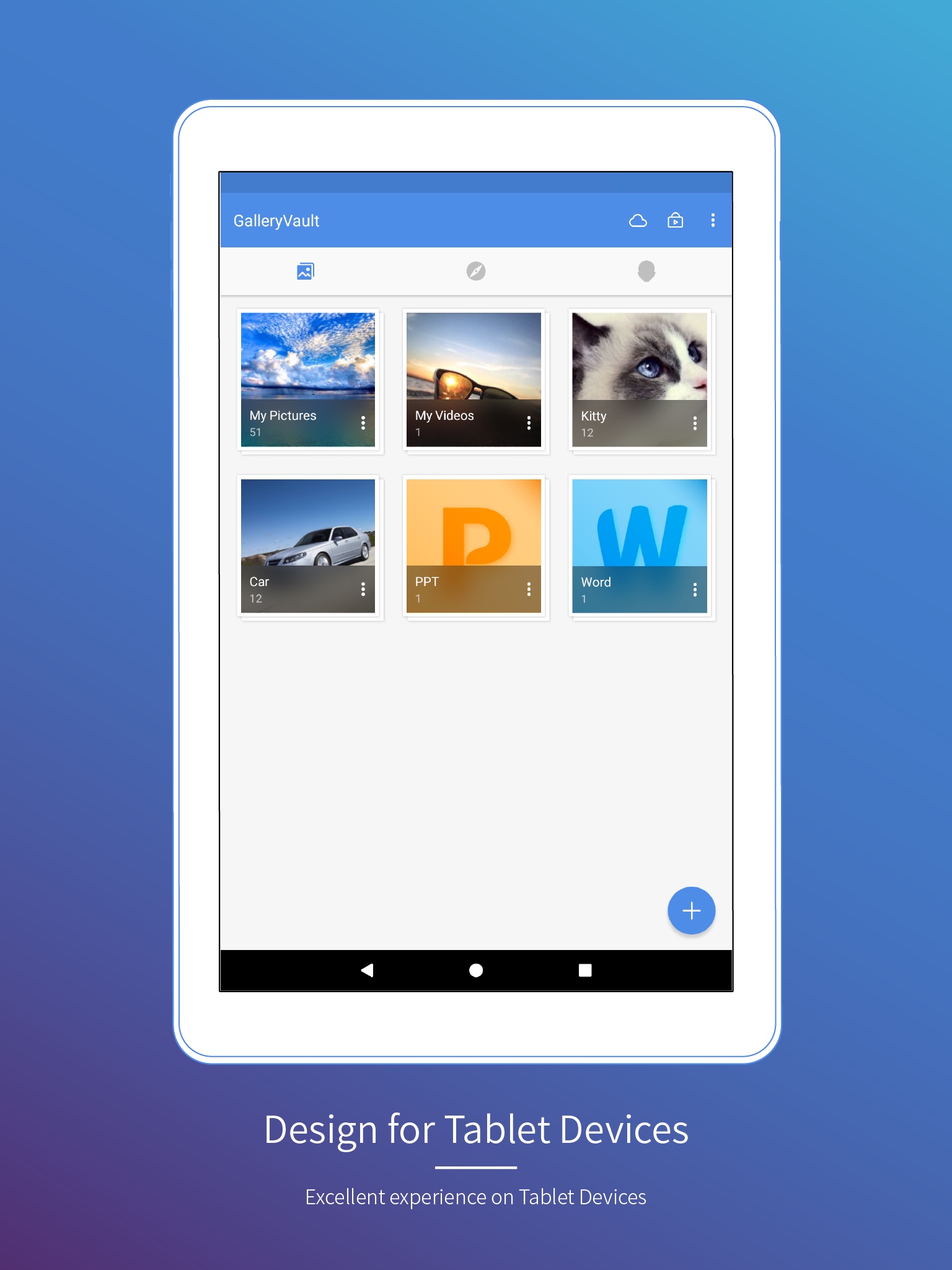
Gallery Vault-Hide Photo Video gives you an encrypted place on Android for pictures, clips, and other files. You unlock GalleryVault and choose the items you want to move into it. Once inside, you can organize the files in folders, open them in the vault, or export them when you need them elsewhere.
Import by file type: Open GalleryVault and use its add menu to choose pictures, videos, or other files. The developer’s demo shows those choices separately, so you can go straight to the kind of file you want to bring in.
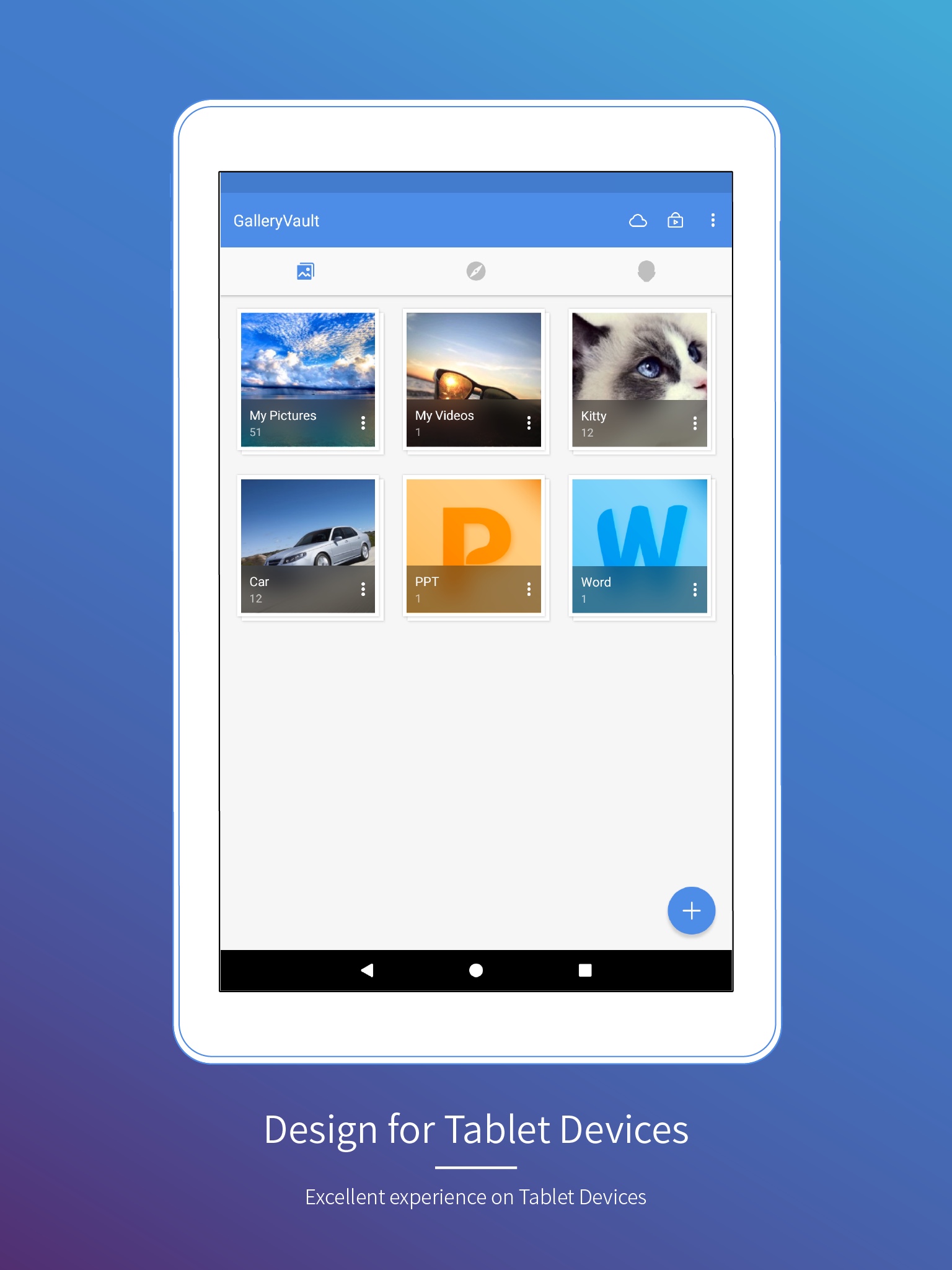
Arrange the files inside: Use subfolders to separate items such as receipts and personal photos. GalleryVault also lets you sort and search the vault, which gives you another way to find a file after you have put it away.
Return a file to regular storage: The developer’s help page describes touching and holding a file, then choosing the unhide icon. Its documented destinations are the original location and the GalleryVault unhide folder under DCIM.

Encryption inside the vault: ThinkYeah says GalleryVault keeps imported material encrypted while it is stored in the app. GalleryVault decrypts the items it exports, so the resulting files can be used outside the vault.
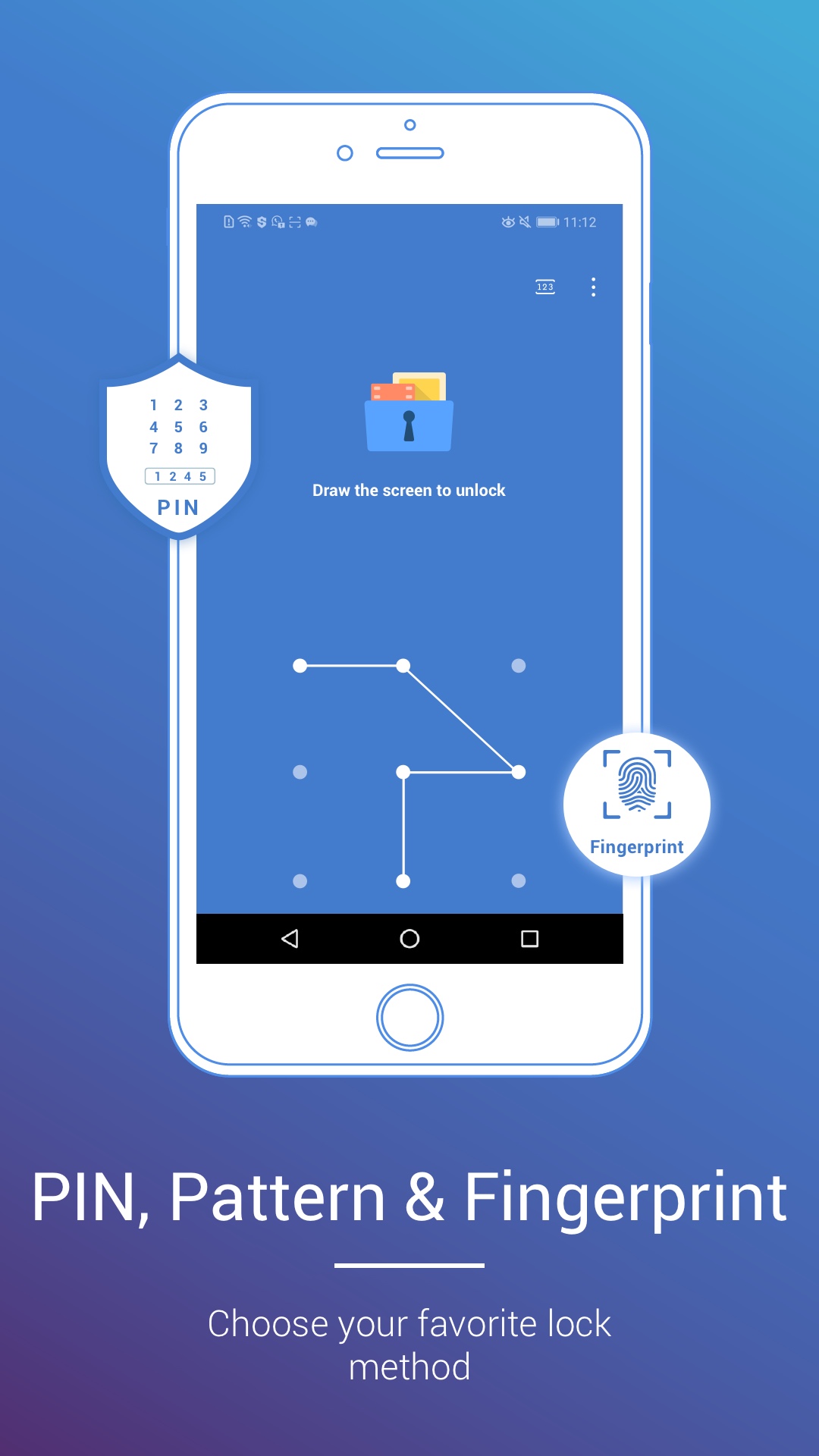
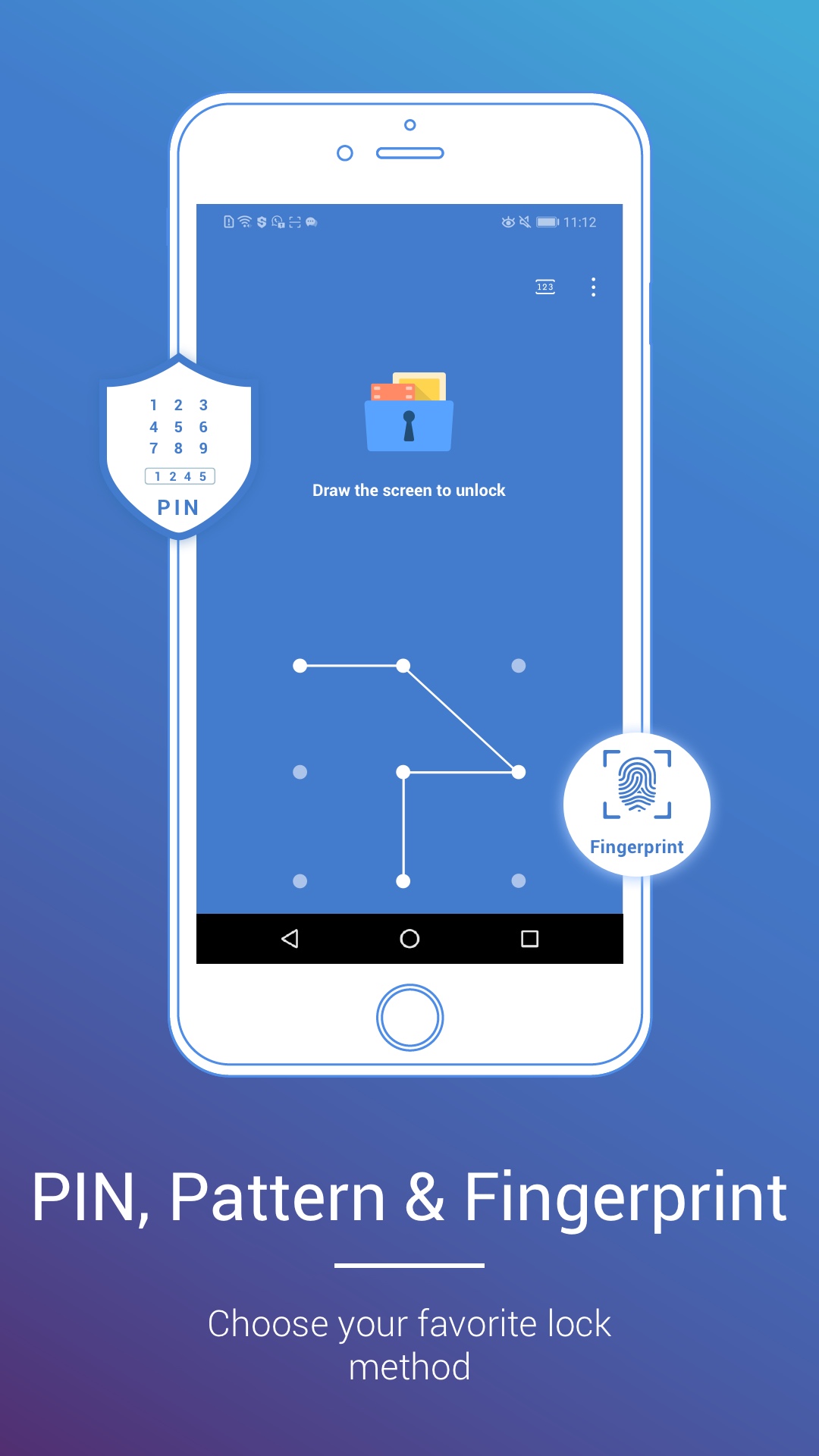
Several ways to unlock: GalleryVault offers a PIN, pattern, or fingerprint unlock. The official images show the pattern grid alongside the other two options.
More than pictures: The vault also accepts audio files and documents. GalleryVault can display animated GIFs inside the vault as well.
SD card storage: GalleryVault can move encrypted items to an SD card to free up space on the device. The card can also hold files you have hidden directly on it.
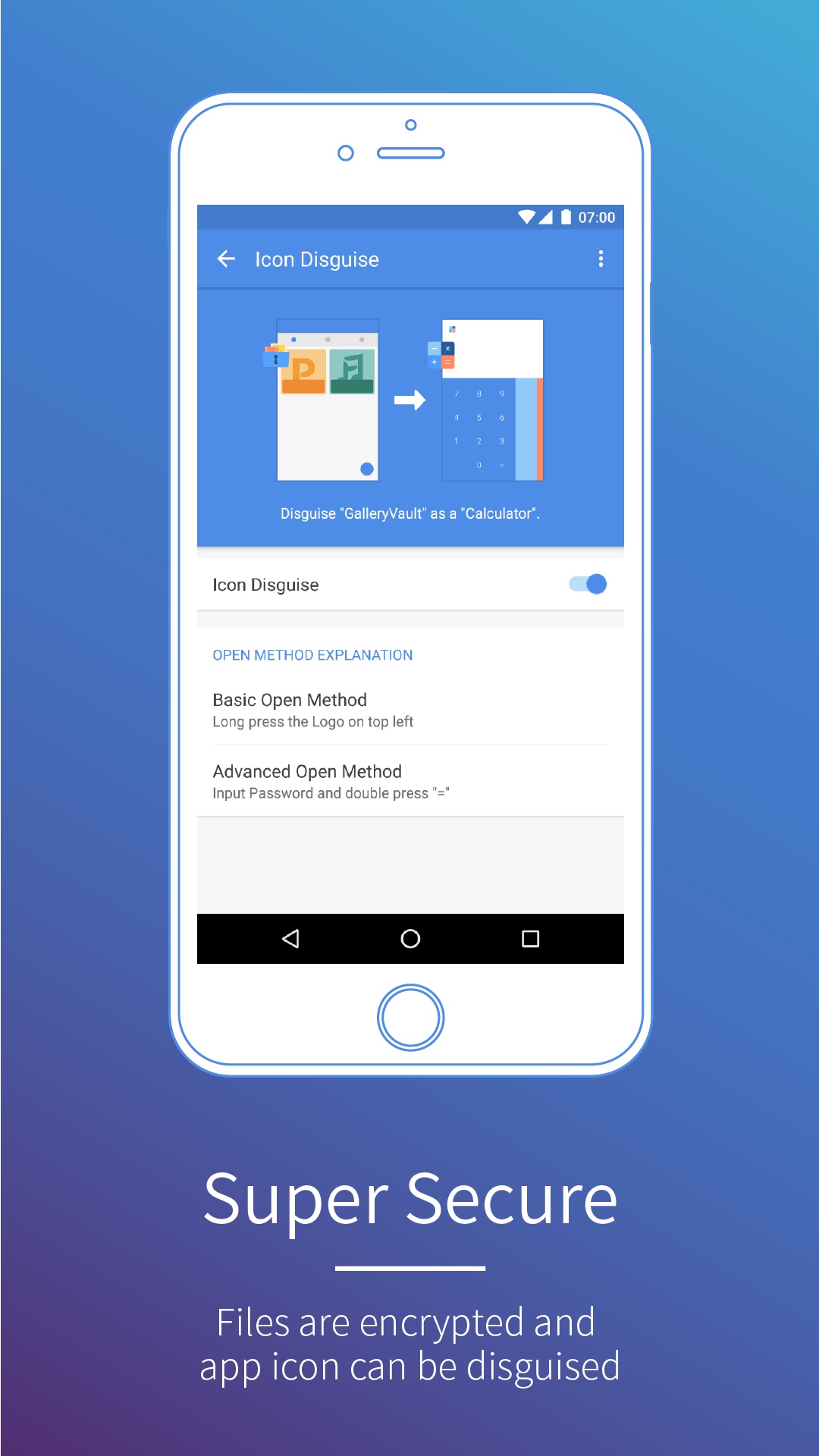
Hidden launcher icon: GalleryVault has an option to hide its icon. The Play listing documents a separate way to reopen the vault through Android’s app settings.
Fake passcode: Entering the fake passcode brings up decoy material in GalleryVault. It gives the alternate code its own view of the vault.
Shake to close: GalleryVault also supports closing the app with a shake of the phone, giving you a gesture for leaving the vault quickly.
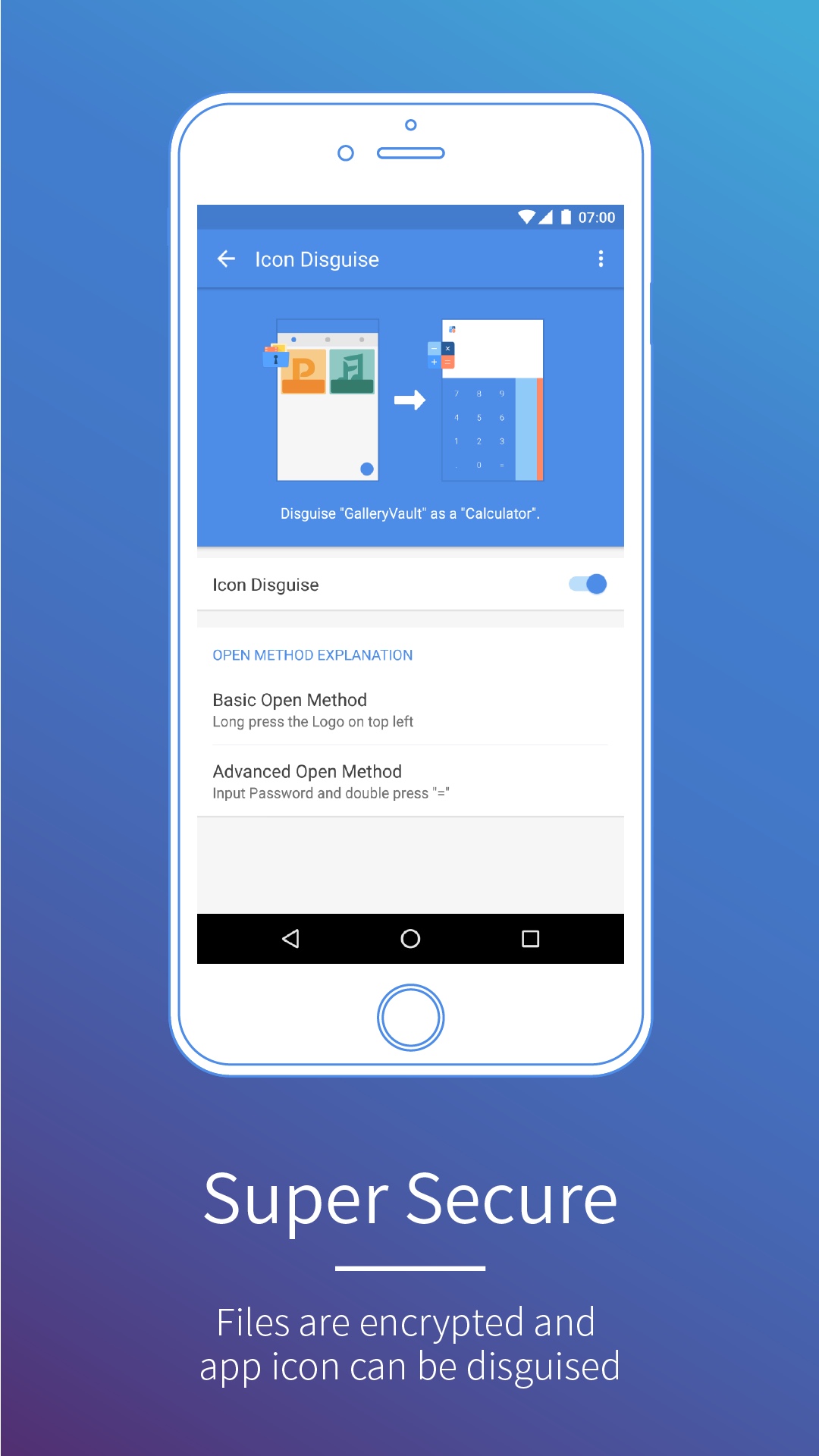
Where can the vault be opened after hiding its icon?
ThinkYeah’s Play listing points to the Manage Space button in GalleryVault’s Android app details. Open Android Settings, go to Apps, and select GalleryVault to find that entry.
What should be done before switching phones?
Set up a backup of the hidden files before moving to the new device. GalleryVault support documents a Backup and Restore screen in the app settings and describes Cloud Sync with Google Drive as a separate option.
Where can missing vault files be checked?
The developer’s recovery guide points to Find Lost Files in GalleryVault’s settings when app data is still present on the same phone.
How can files be unhidden in bulk?
The support guide puts Unhide All under Export and Unhide in GalleryVault’s settings. The guide also describes an unhide action for individual folders.
What does the 4.7.3 package contain?
The 97.00 MB XAPK pairs the main GalleryVault app with ARM64 and xxhdpi configuration APKs. The package sets Android 6.0 as its minimum system version.
GalleryVault suits a phone where personal media needs a place apart from the regular gallery. Its folder tools help organize what you keep there, and the unhide action gives you a way to move files back out.
Gallery Vault-Hide Photo Video
Tools
Date:2026-11-25

Poweramp Music Player
Media & Video
Date:2026-11-25

Xiaomi Home
Lifestyle
Date:2026-11-25

Mobile JKN
Lifestyle
Date:2026-11-25

myIM3: Data Plan & Buy Package
Lifestyle
Date:2026-11-25

Real Drum electronic drums set
Media & Video
Date:2026-11-25

Epson iPrint
Tools
Date:2026-11-25

Funimate Video Editor & Maker
Media & Video
Date:2026-11-25