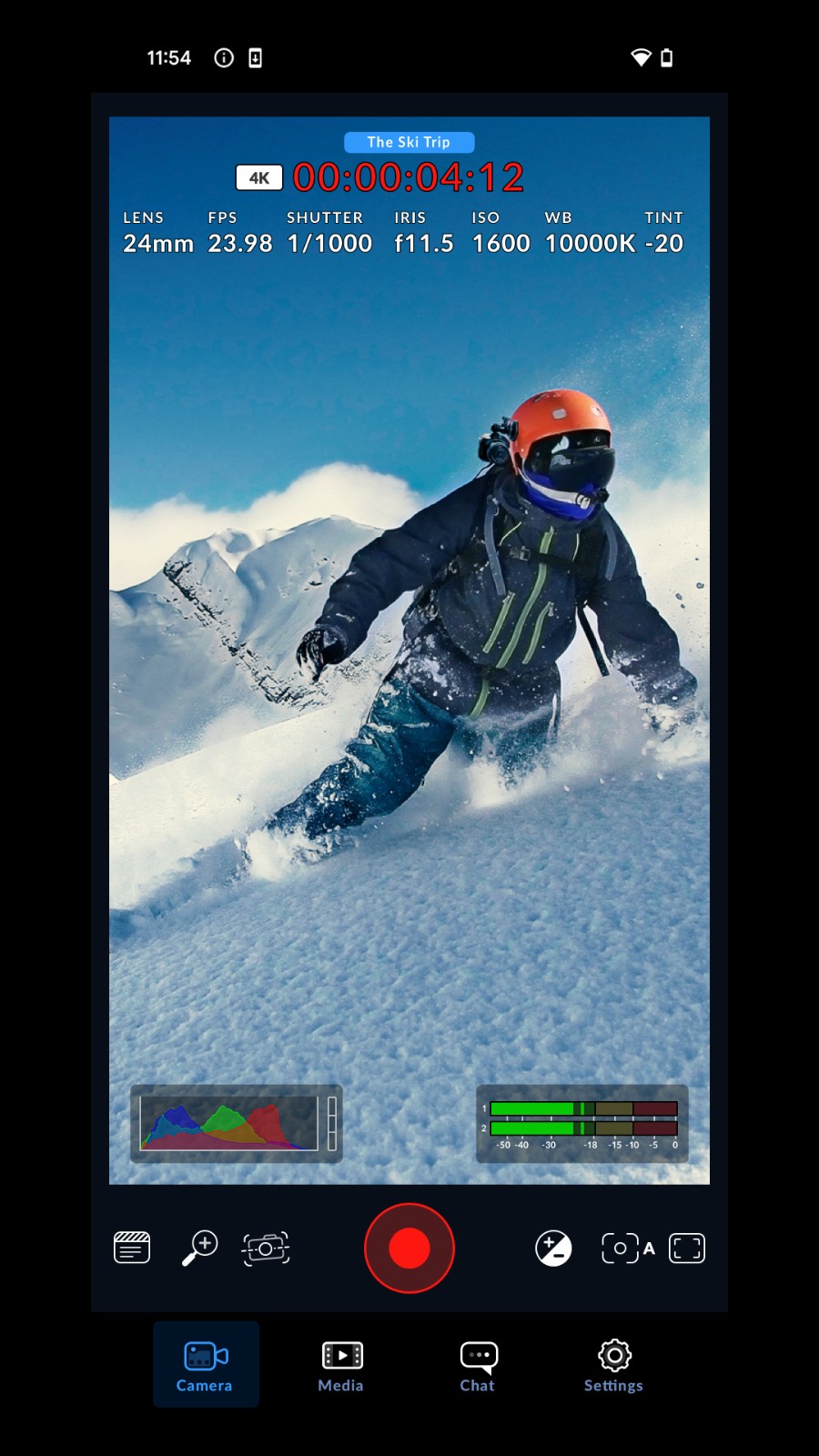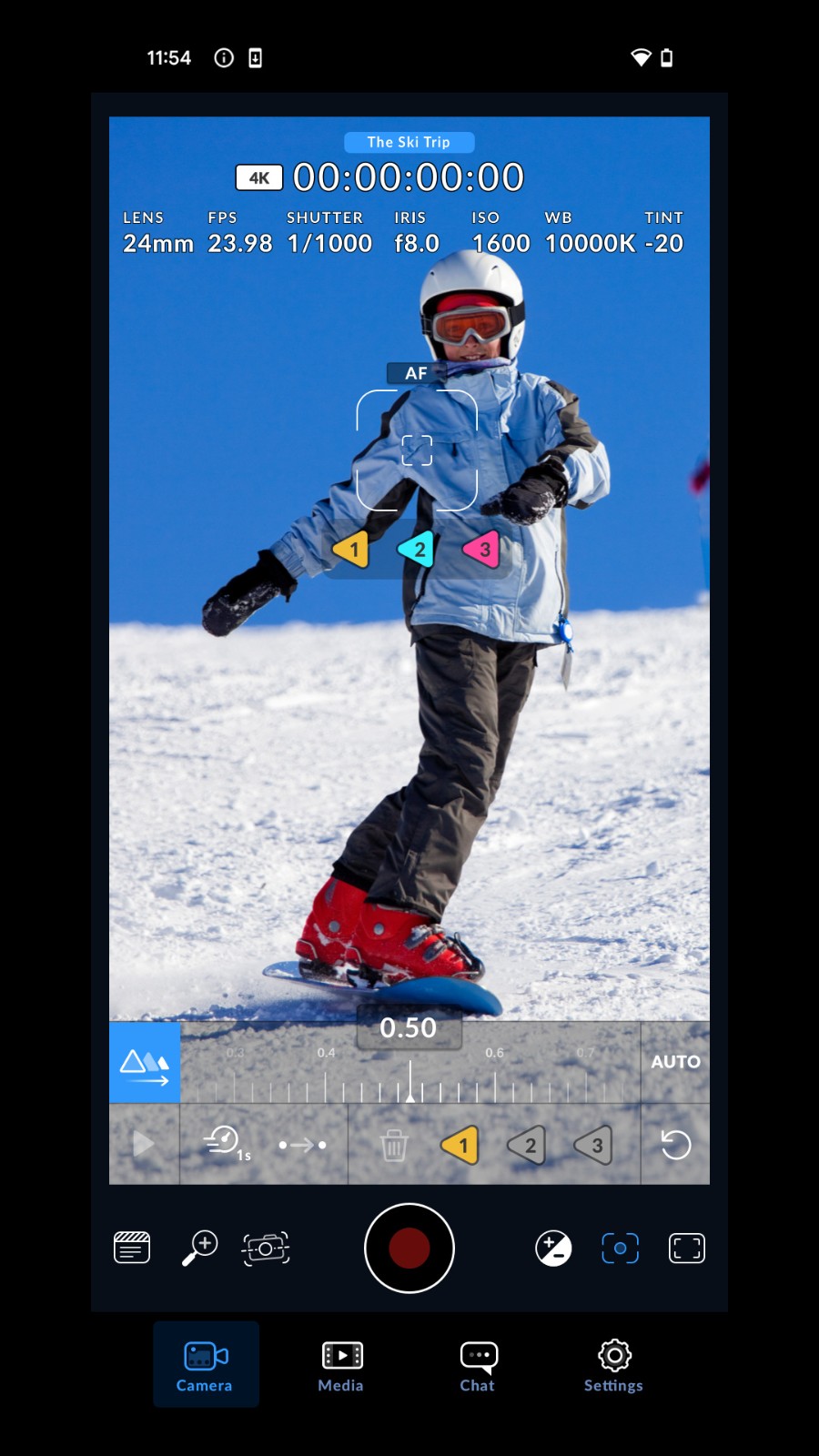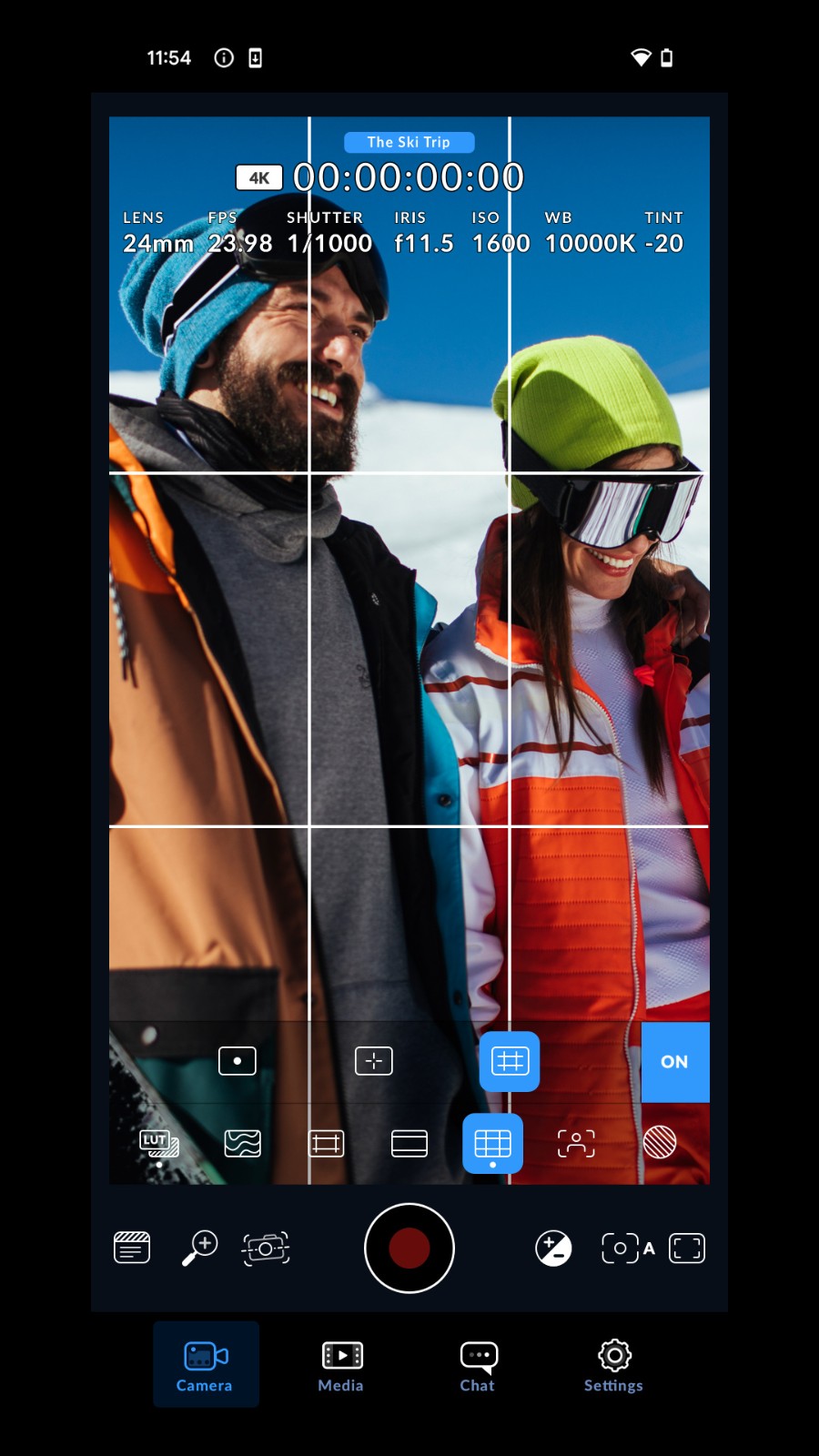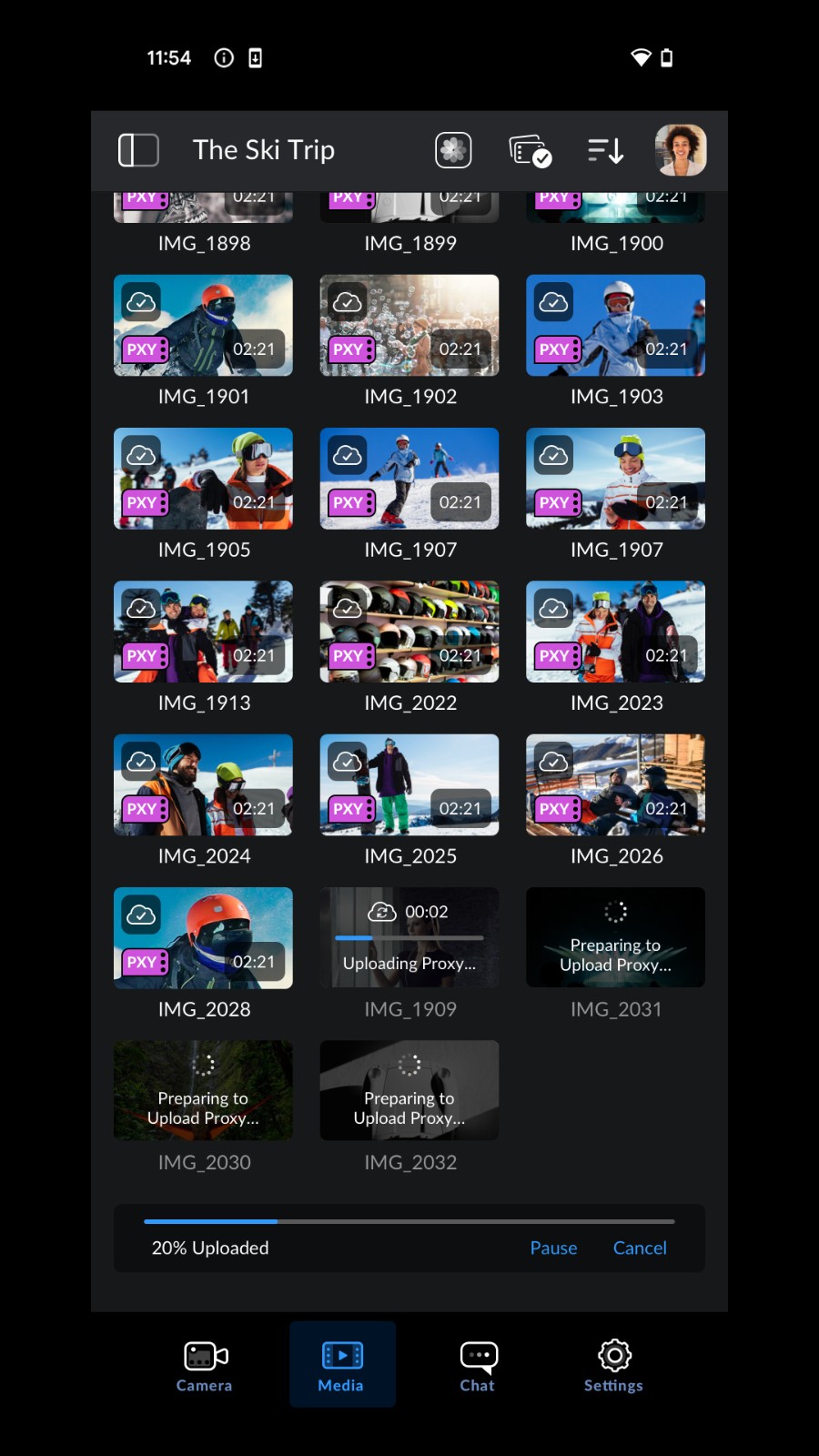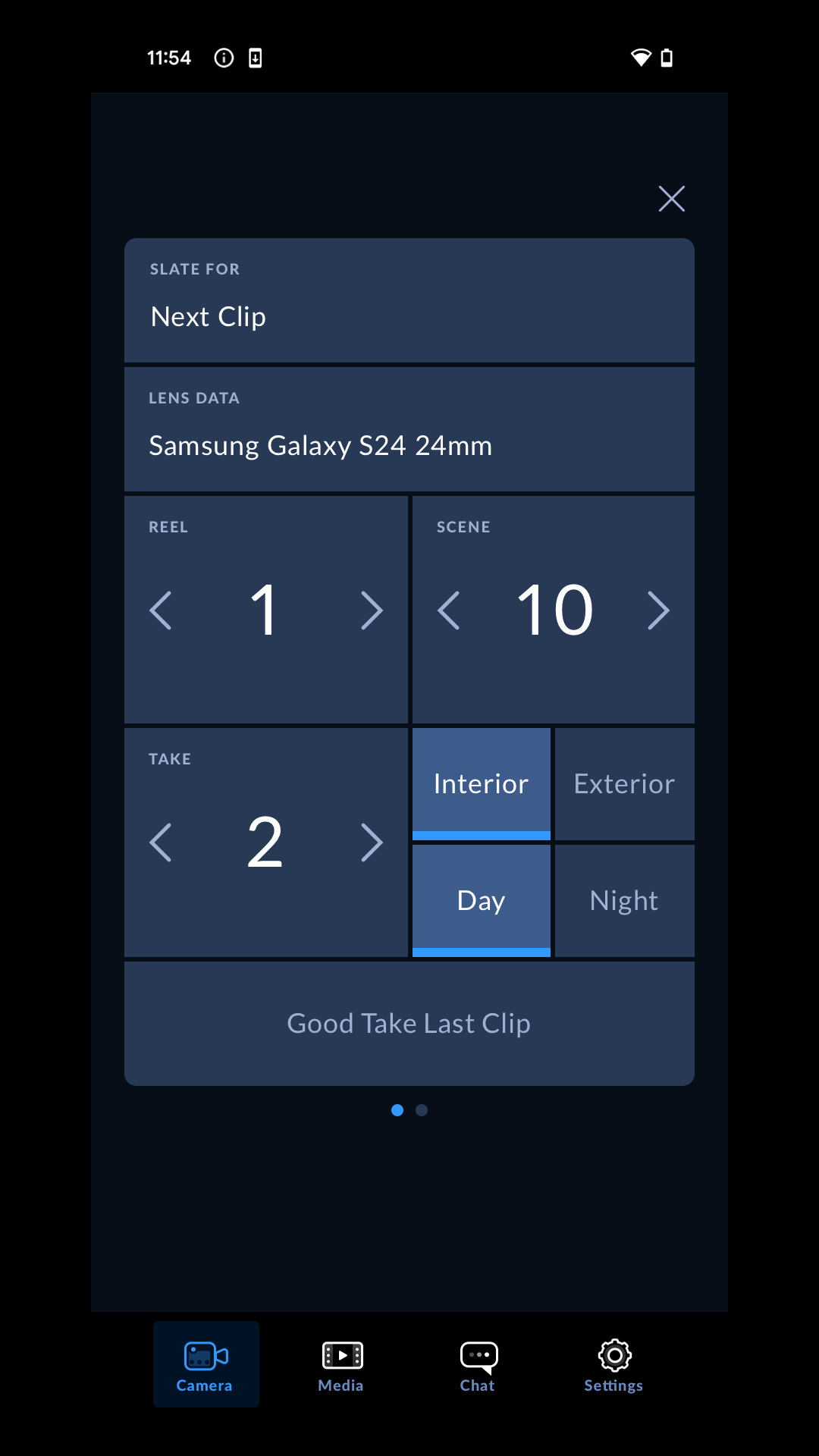
Blackmagic Camera gives Android video shooters a recording screen built around frame rate, shutter and white balance. You set the shot in the camera view, adjust exposure and focus, and check the on-screen guides before recording. After the take, you can review the clip in Media or send it to a DaVinci Resolve project through Blackmagic Cloud.
Set up the shot: Choose the frame rate for your footage, then adjust the shutter and ISO in the camera view. Set white balance with a preset or adjust it manually if the colors look off under the lights you are using.
Check focus and exposure: Turn on focus assist to inspect the subject before recording. If a bright part of the frame needs attention, bring up the zebra guide and adjust its threshold for the shot.
Review a take in Media: Open the clip and move through it with the scrubber. The preview displays the filename, duration and timecode, and the clip list can be sorted by scene or shot when there are several takes to review.
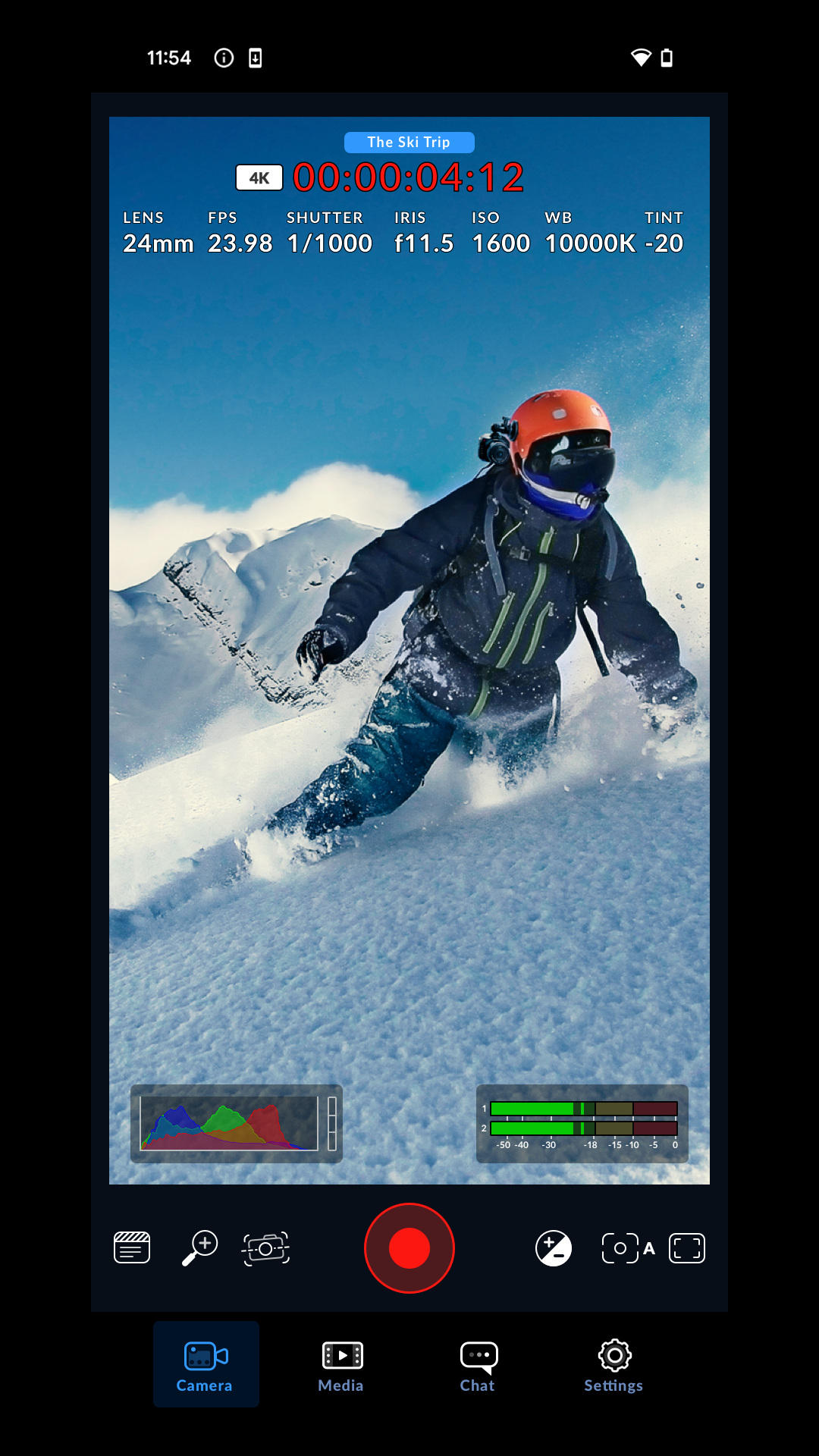
Recording formats: Blackmagic lists H.264 and HEVC among the recording options. Resolution and color-space choices depend on the model, so check the settings on the device you plan to shoot with.
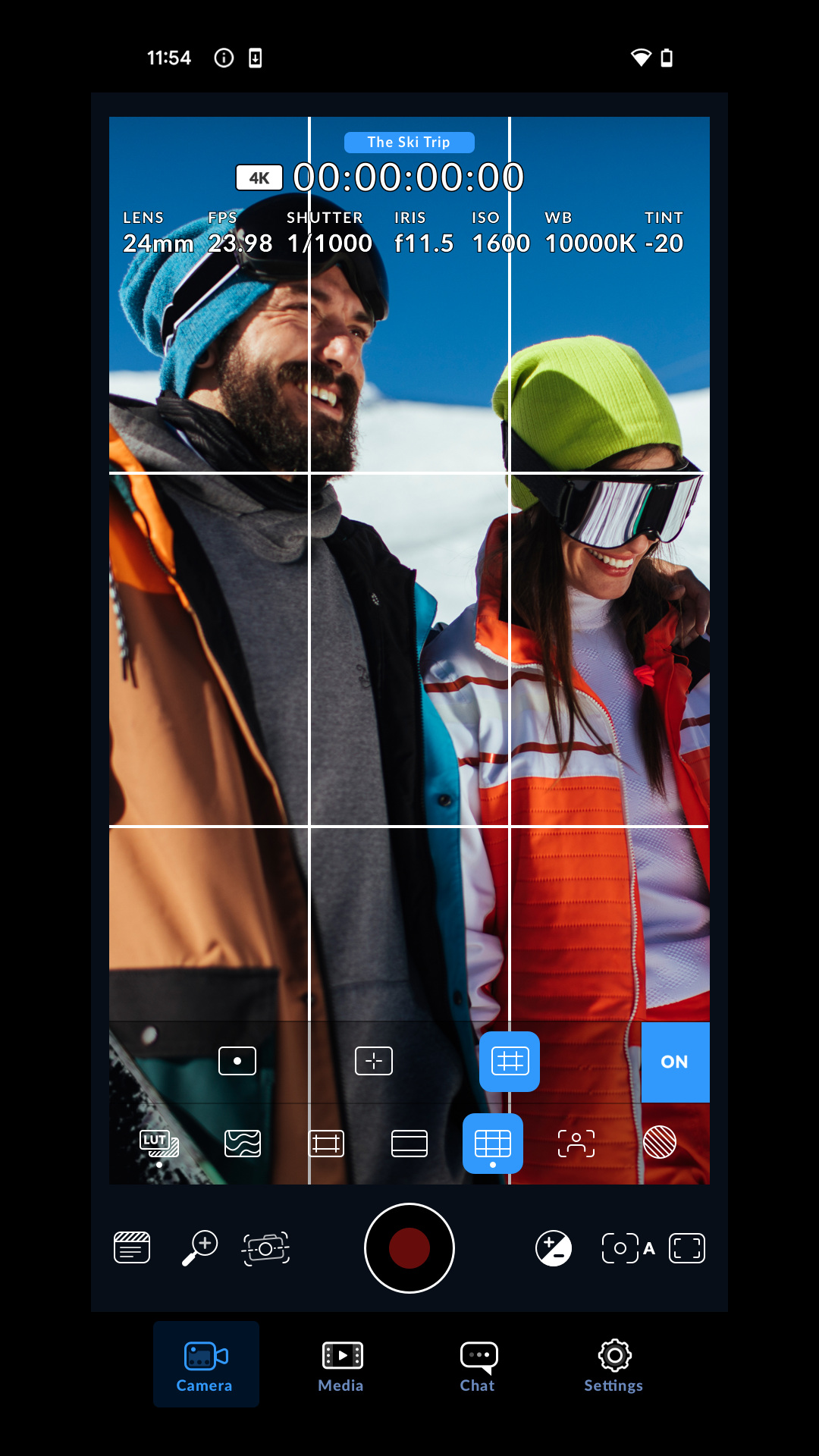
Framing guides: The camera view can display guides for formats such as 9:16 and 2.39:1. Use them to compose for a vertical edit or a wide crop while keeping the subject inside the intended frame.
Audio monitoring: The recording interface offers both VU and PPM meters. Tap the meter to bring up a larger overlay when checking the audio level.
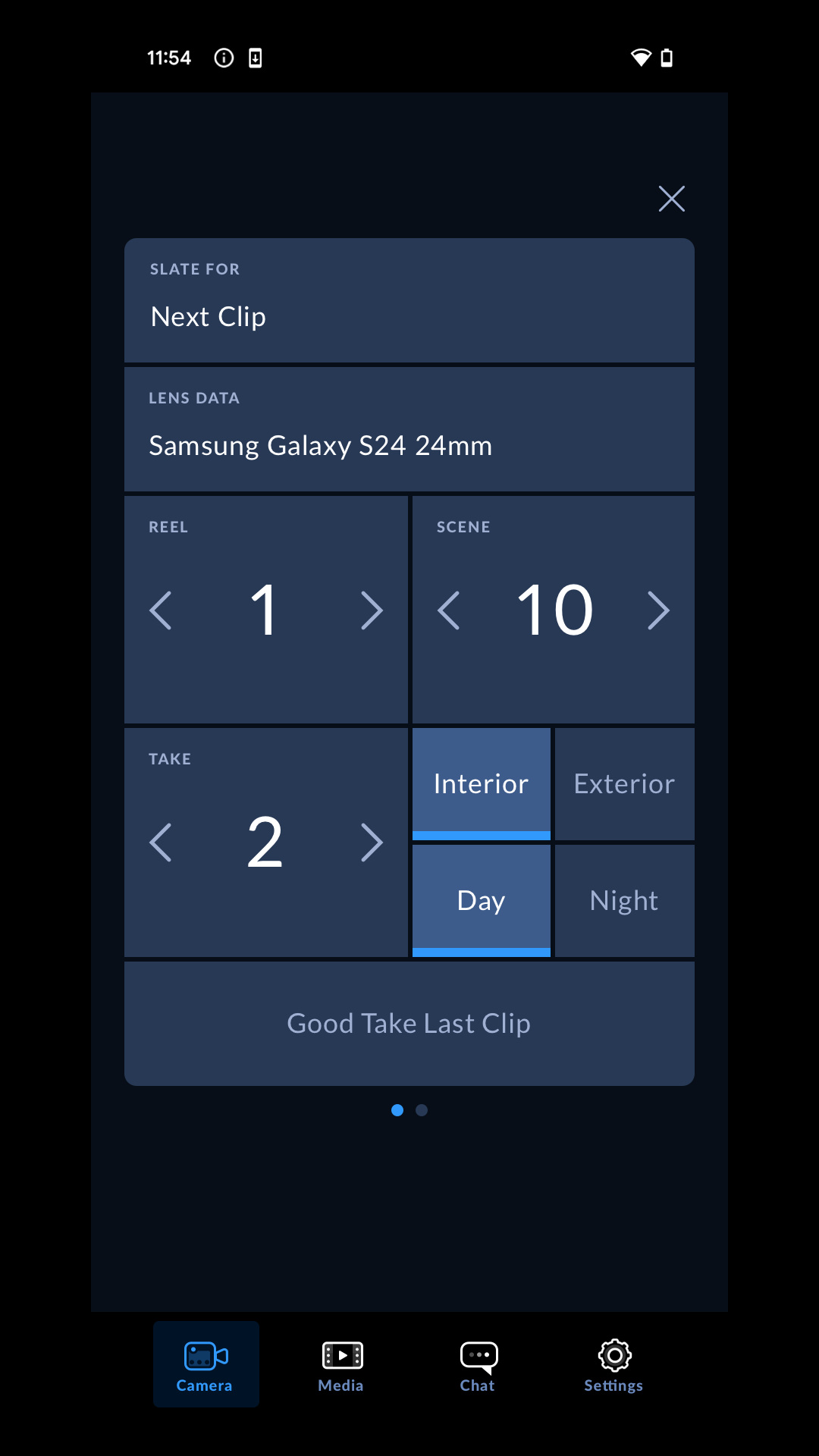
Clip organization: The slate accepts a scene, take and reel, along with other production details. You can also mark the last clip as a good take from the slate.
Remote camera roles: A phone can act as a controller or a remote camera. The remote can allow monitoring alone or allow the controller to change settings as well.
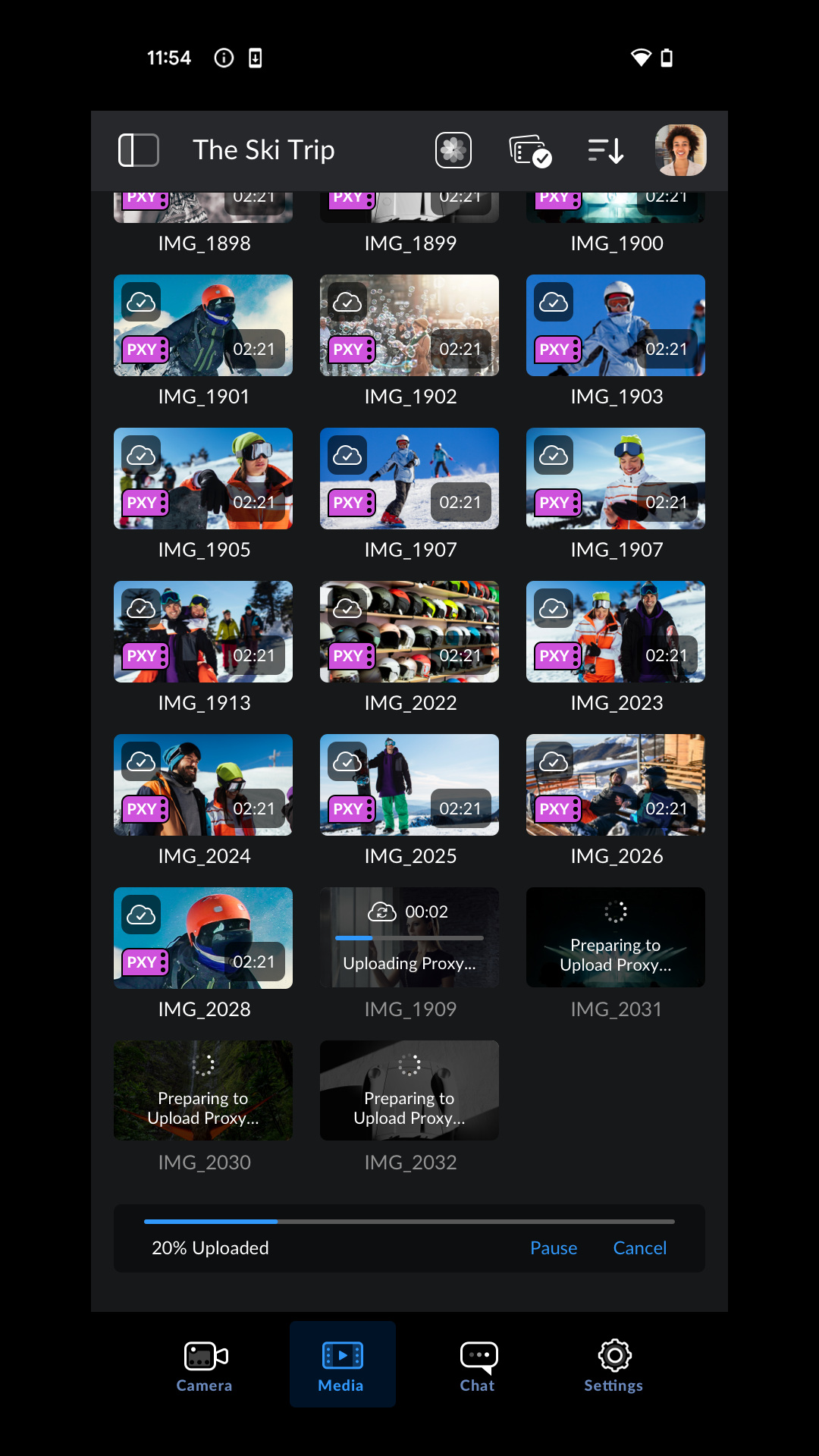
Proxy upload choices: With proxy recording enabled, Blackmagic Camera offers a choice between sending just the proxies and sending the proxies together with the originals.
Timecode for each clip: The camera settings offer both Record Run and Time of Day timecode. The selected mode supplies timecode for each clip.
Will this package work on every phone running Android 13?
The 3.5.2.0029 XAPK is 53.22 MB and requires Android 13 or later. It includes ARMv7 and ARM64 configuration splits. Check Blackmagic’s supported-model list before planning a shoot, since device support is narrower than the operating-system requirement.
Can clips go into a shared folder outside a Resolve project?
Sign in to Blackmagic Cloud and use a shared Cloud Folder as the destination. For footage that belongs in an editing project, the Android app also offers automatic and manual sharing to DaVinci Resolve through Blackmagic Cloud.
What does the proxy setting create?
Blackmagic’s Android specifications describe an optional 1920 x 1080 HEVC proxy for each recording. The Media page includes a manager for the proxy files.
Can every supported phone record at 8K?
Check the resolution menu on the phone you intend to use. Blackmagic lists 8K among recording options that depend on the Android model.
Which DaVinci Resolve version does Blackmagic list for integration?
The Android specifications list DaVinci Resolve 18.6 or later for the app’s integration with Blackmagic Cloud.
Blackmagic Camera fits a shoot where you want to check focus and framing in the camera view and mark takes as you work. Its proxy and Cloud options are worth comparing if the footage needs to reach an editor using DaVinci Resolve.
Blackmagic Camera
Photography
Date:2026-11-24

Signal Private Messenger
Social
Date:2026-11-24

VLC for Android
Media & Video
Date:2026-11-24

Tor Browser
Tools
Date:2026-11-24

Xender
Tools
Date:2026-11-24

ElevenLabs
Media & Video
Date:2026-11-24

Real Guitar
Media & Video
Date:2026-11-24

Emochi
Social
Date:2026-11-24